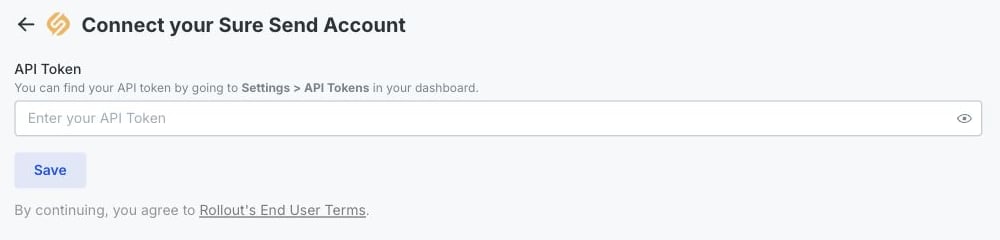
Let’s connect your account
Choose a Team token to connect records for a brokerage or team. Only a Sure Send Admin or Owner can create a Team token. Choose a User token if the connection should only access records available to your Sure Send user.
1
Open your API token settings
Sign in to the Sure Send account you want to connect:In the left navigation, select Settings. Under Integrations & API, select API Tokens.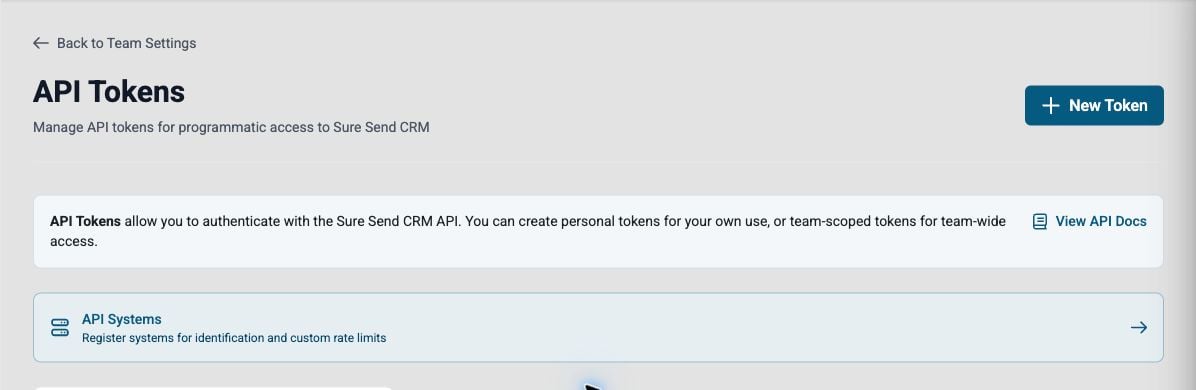
Open Sure Send
Open Sure Send in a new tab
2
Create and copy your token
Select New Token. Enter a name that will help you recognize the connection later, such as Rollout.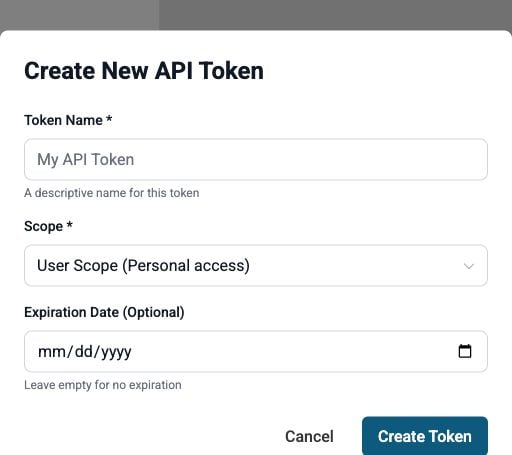
- Team Scope connects the team’s CRM records.
- User Scope connects only the records available to your Sure Send user.
3
Paste the token and save
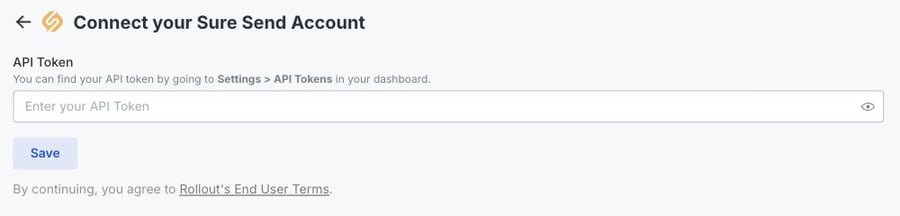
Return to the connection window. Paste the token into API Token, then select Save.