
Let’s connect your account

1

Open your API token settings

Sign in to the BoldTrail account you want to connect, then use this shortcut:

Open BoldTrail API Settings

Open Lead Dropbox in a new tab
Can’t use the shortcut? In BoldTrail, go to Lead Engine → Lead Dropbox, then scroll to My API Token.
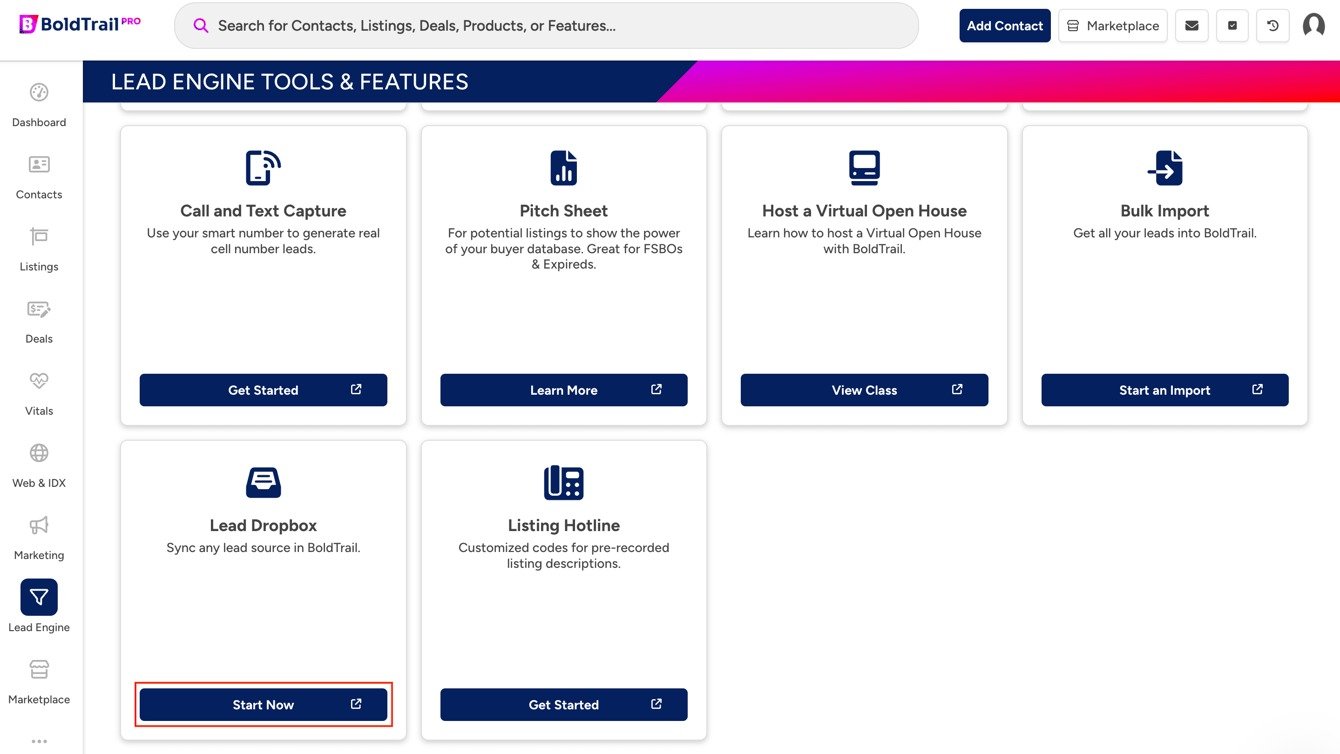
The BoldTrail Lead Engine page with Lead Dropbox and Start Now highlighted
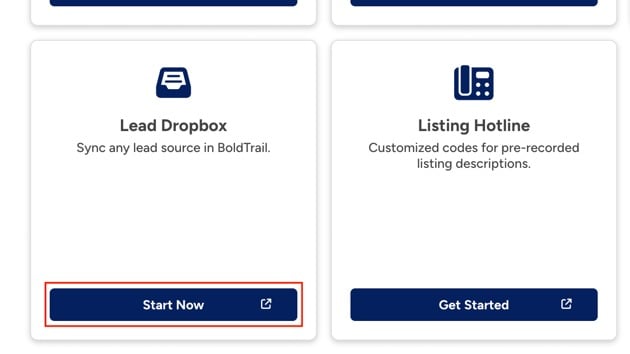
A close-up of the BoldTrail Lead Dropbox card and Start Now button
2

Generate and copy your token

In Create New Token, select All for the permissions, then select Generate.
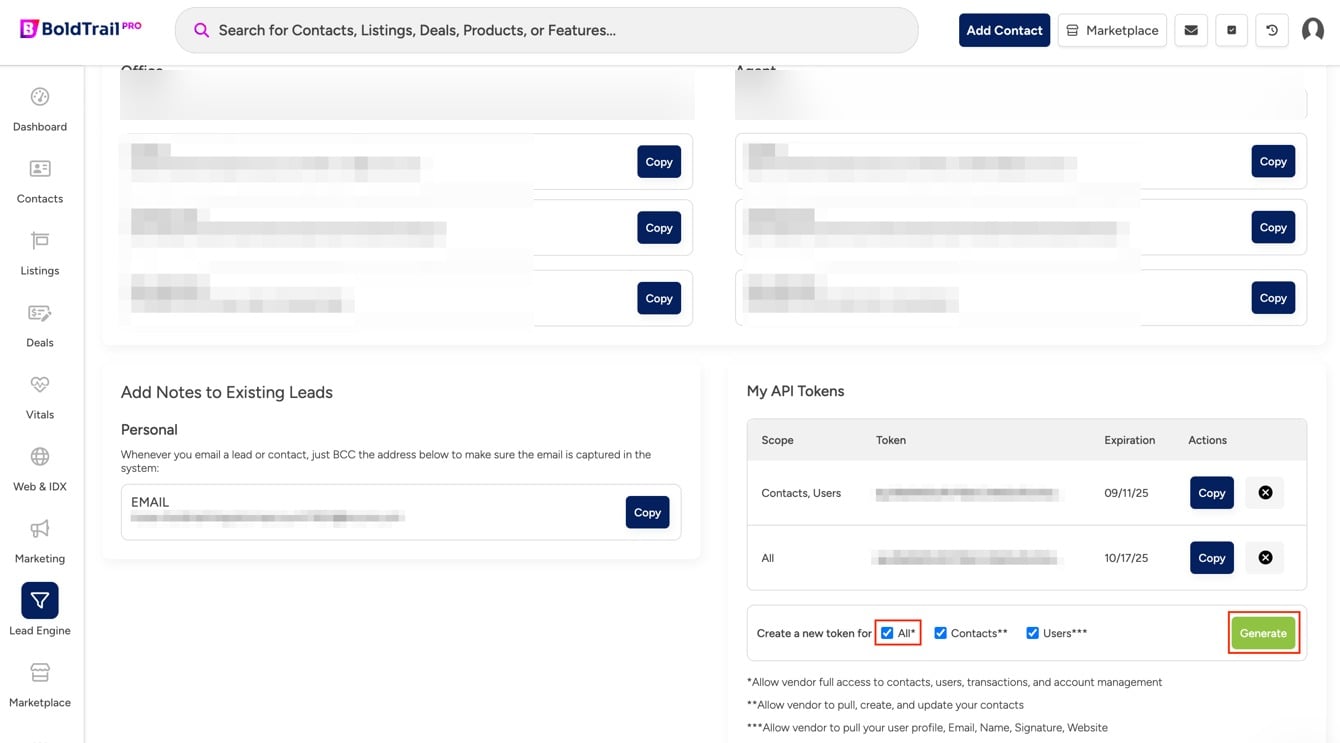
The BoldTrail My API Tokens section with existing tokens blurred and the All permission and Generate button highlighted
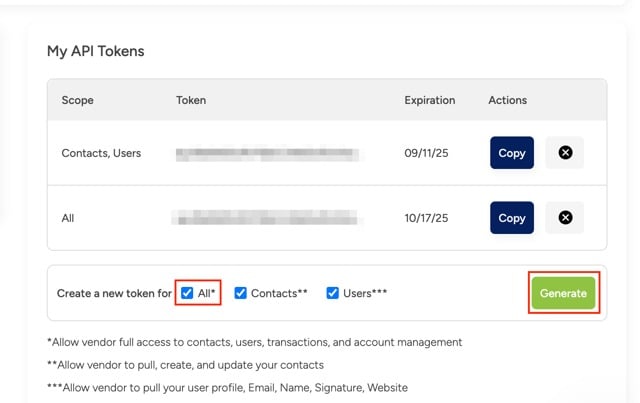
A close-up of the BoldTrail My API Tokens section with All and Generate highlighted
Copy the API token that appears. Leave this tab open while you finish the connection.
3

Paste the token and save

Return to the connection window. Paste the token into API Token, then select Save.
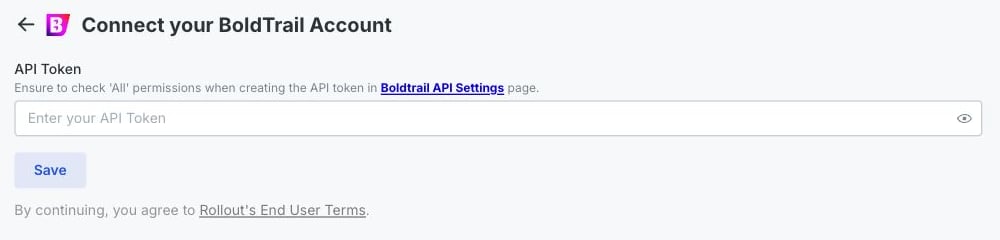
The Rollout-powered BoldTrail connection form with the API Token field and Save button highlighted
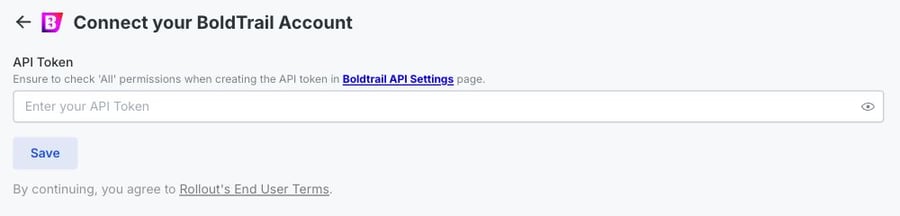
A mobile close-up of the BoldTrail API Token field and Save button
When the form saves, your BoldTrail account is connected.