

Before you begin
Use a Real Geeks account that can manage the site and export leads. Real Geeks requires administrator permission to export all leads.Connect Real Geeks
1
Authorize the site and find its Site UUID
Open the authorization page, sign in, and grant Rollout access to the site you want to connect.If the page says Rollout already has access, it will not show the Site UUID. Open Real Geeks Lead Router, select Configure destinations, and then select your site. Copy the value after 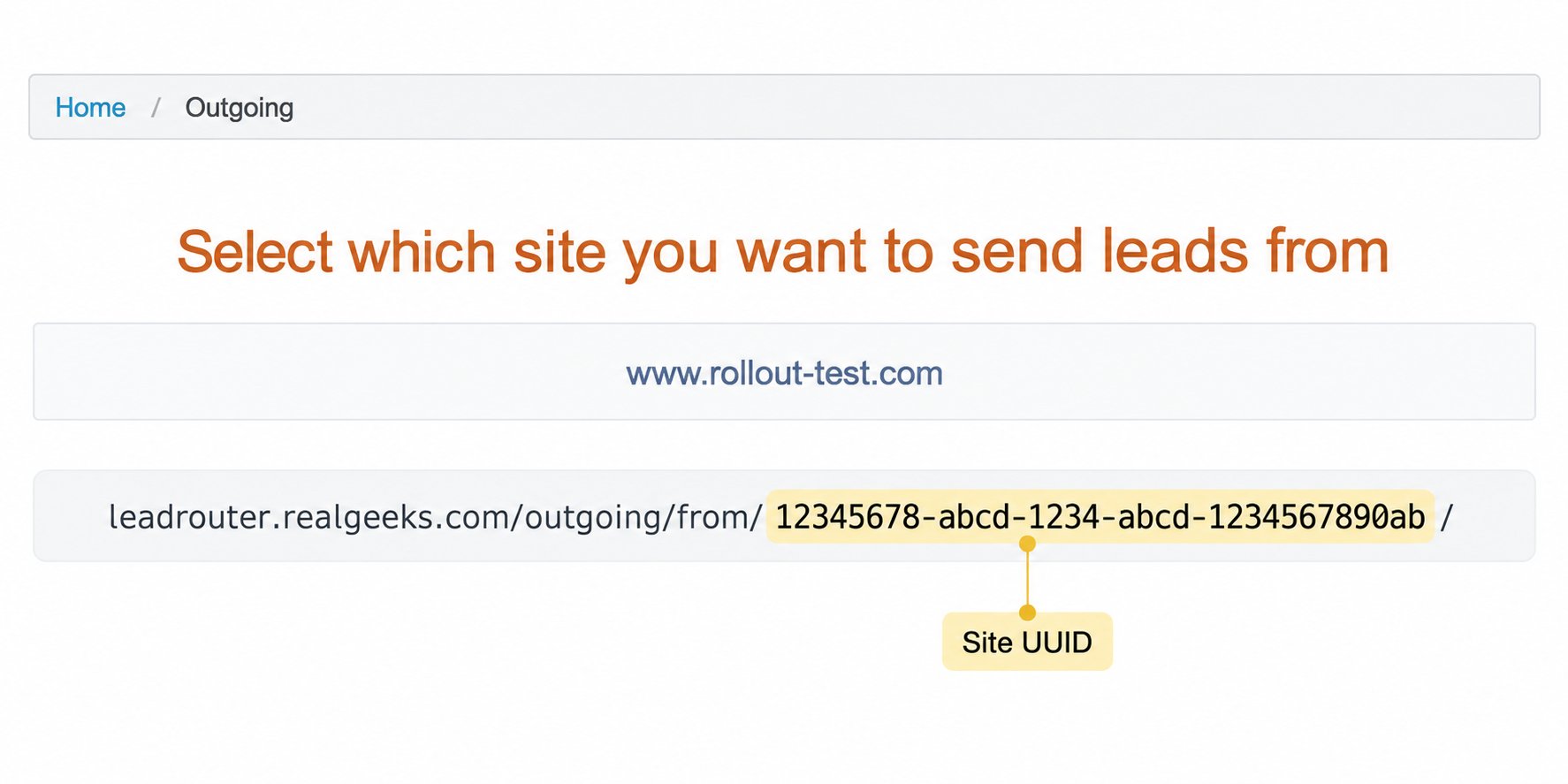
Open Real Geeks API access
Authorize the Real Geeks site
/outgoing/from/ in the page URL. That value is the Site UUID.2
Open the Real Geeks connection form
In the product you are connecting, choose Real Geeks and paste the Site UUID into Site UUID.Copy the generated value under Set the webhook URL to this value. Keep this form open while you configure Real Geeks.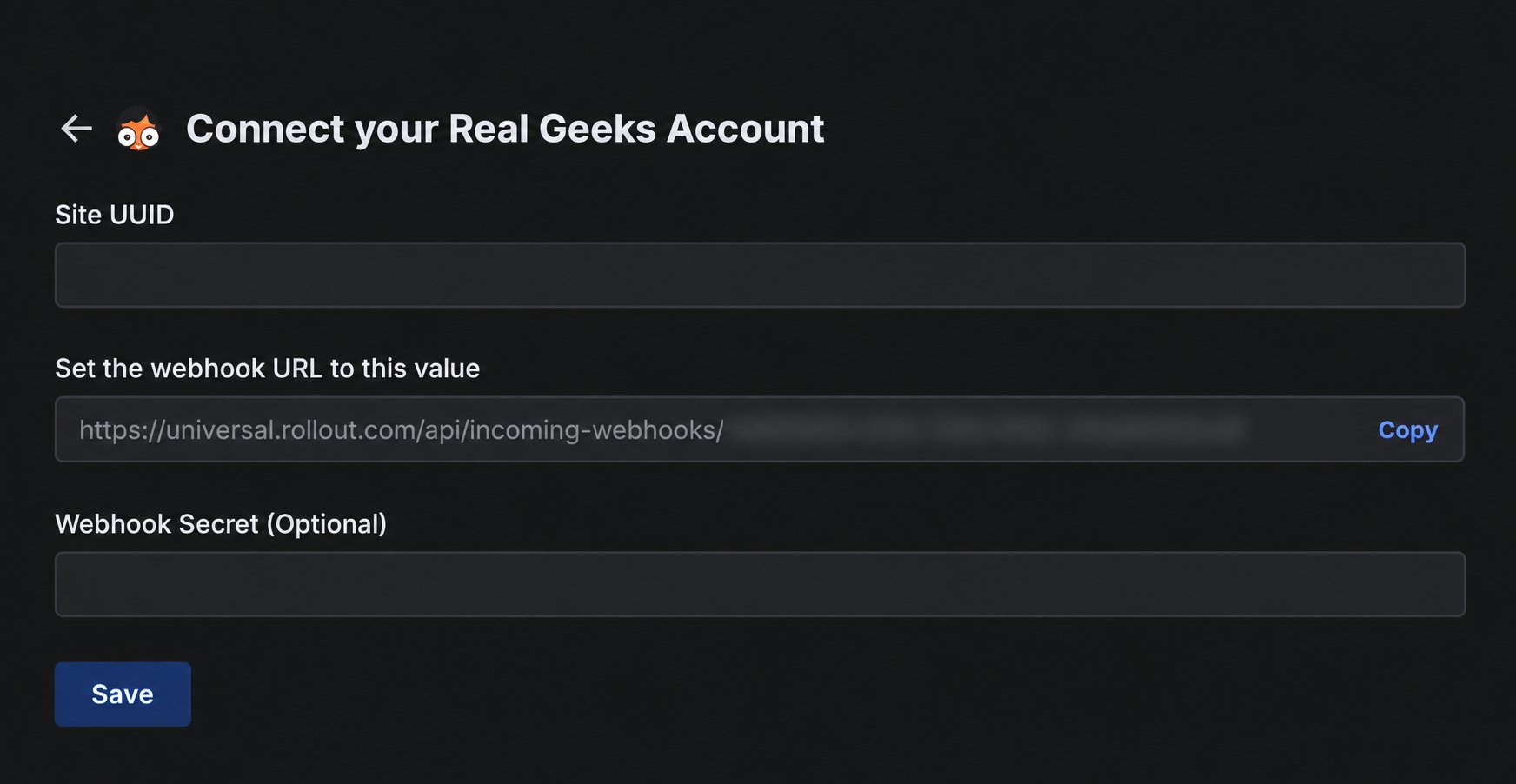
3
Open the Custom API destination
In Real Geeks Lead Router, select Configure destinations, select the site, and find Custom API under Connect to new destination. Select Connect.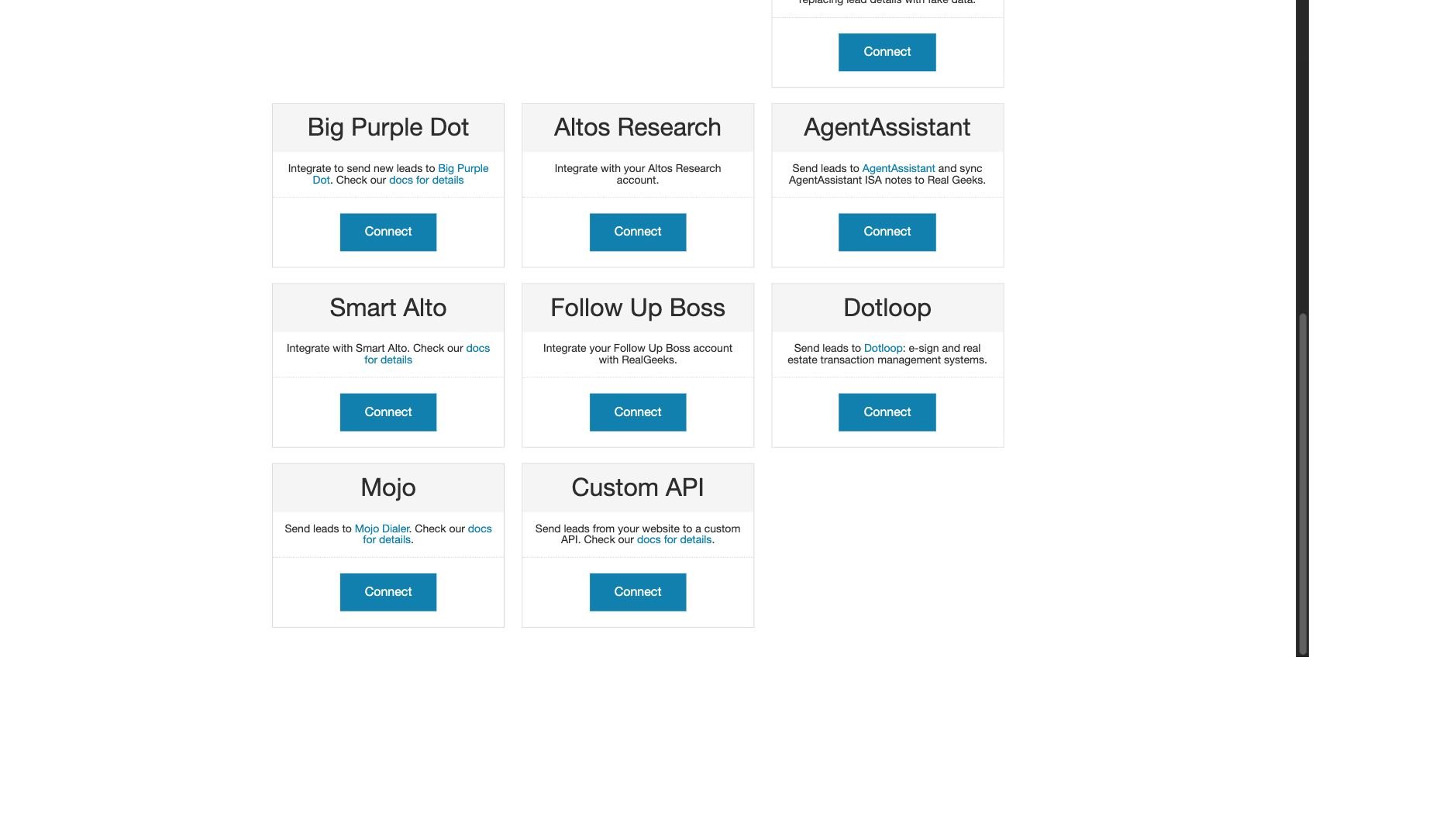
4
Configure future lead delivery
Complete the Custom API form as follows:then the Partner ID is: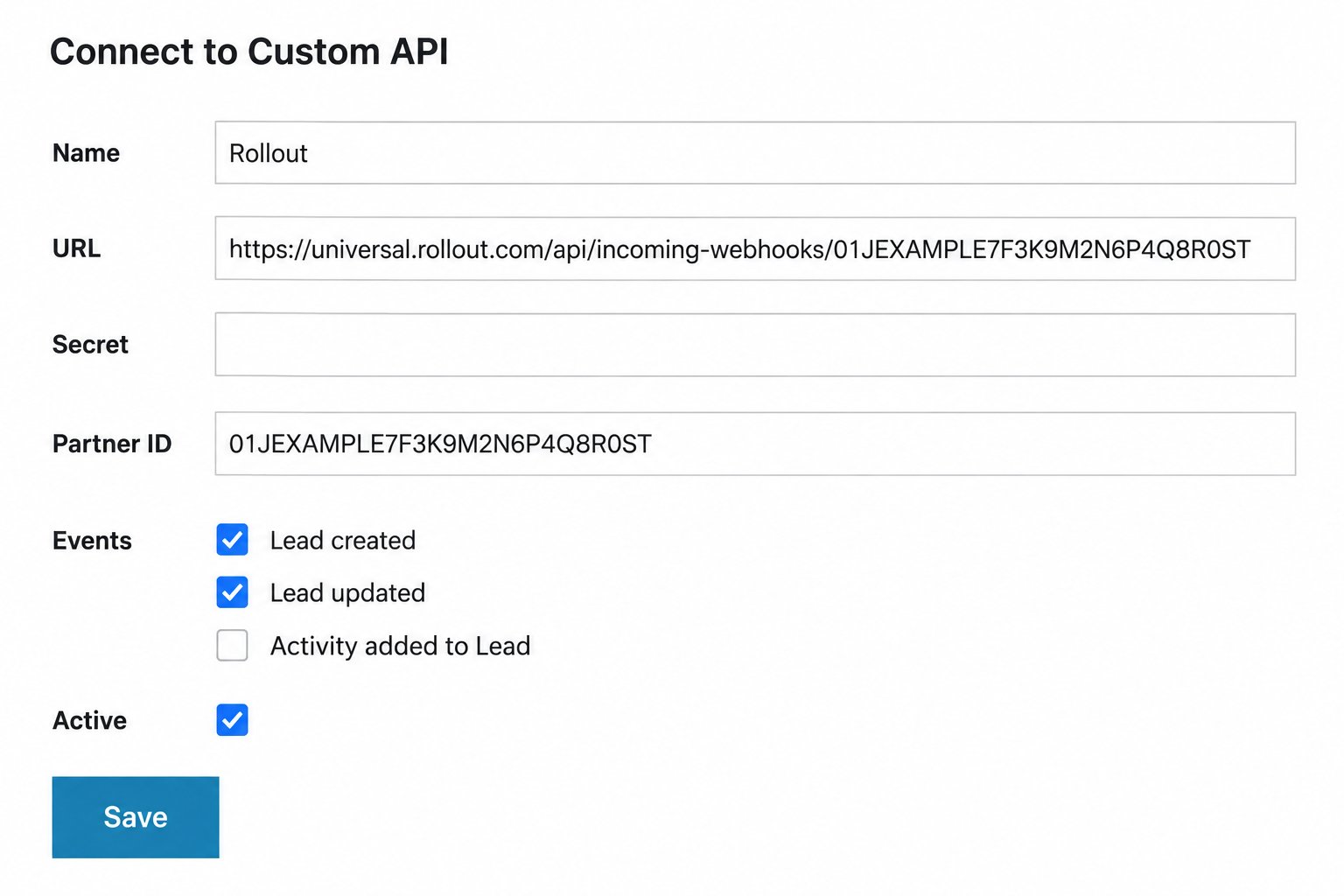
- Name: enter
Rolloutor another recognizable name. - URL: paste the complete generated webhook URL from the connection form.
- Secret: optional. If you use one, enter the exact same value in Webhook Secret (Optional) in the connection form.
- Partner ID: enter everything after the final
/in the generated webhook URL. - Events: enable Lead created and Lead updated.
- Active: enable this option.
5
Export historical leads
In Real Geeks CRM, open Leads, select Export, and then select CSV.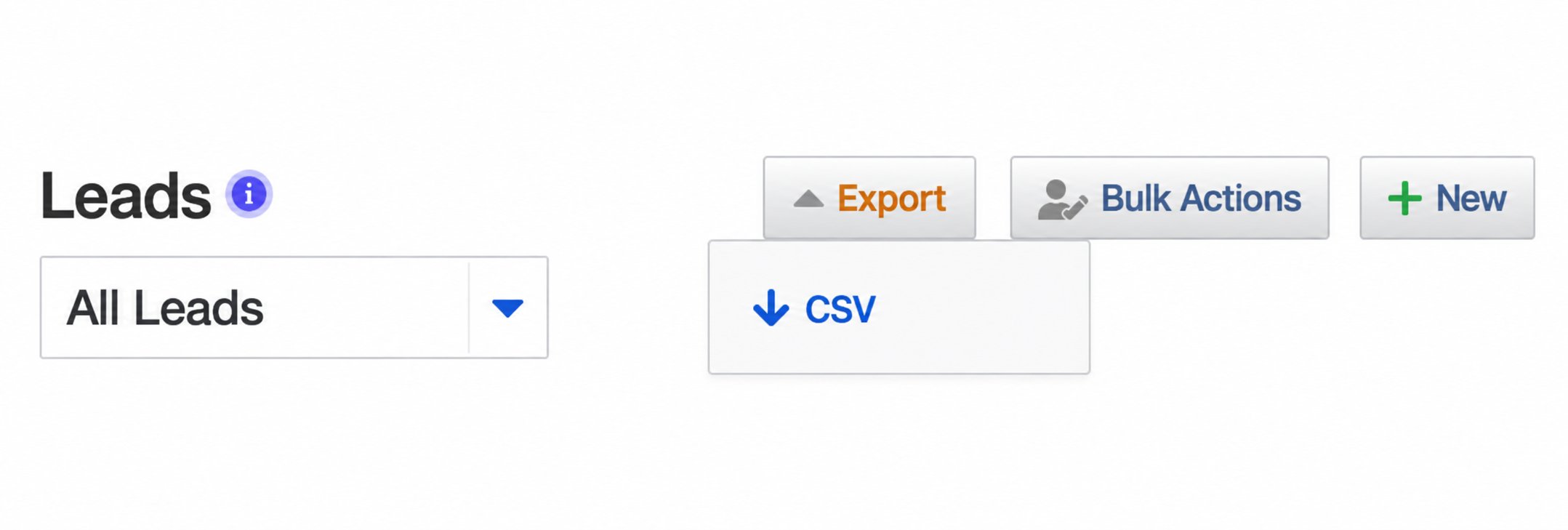
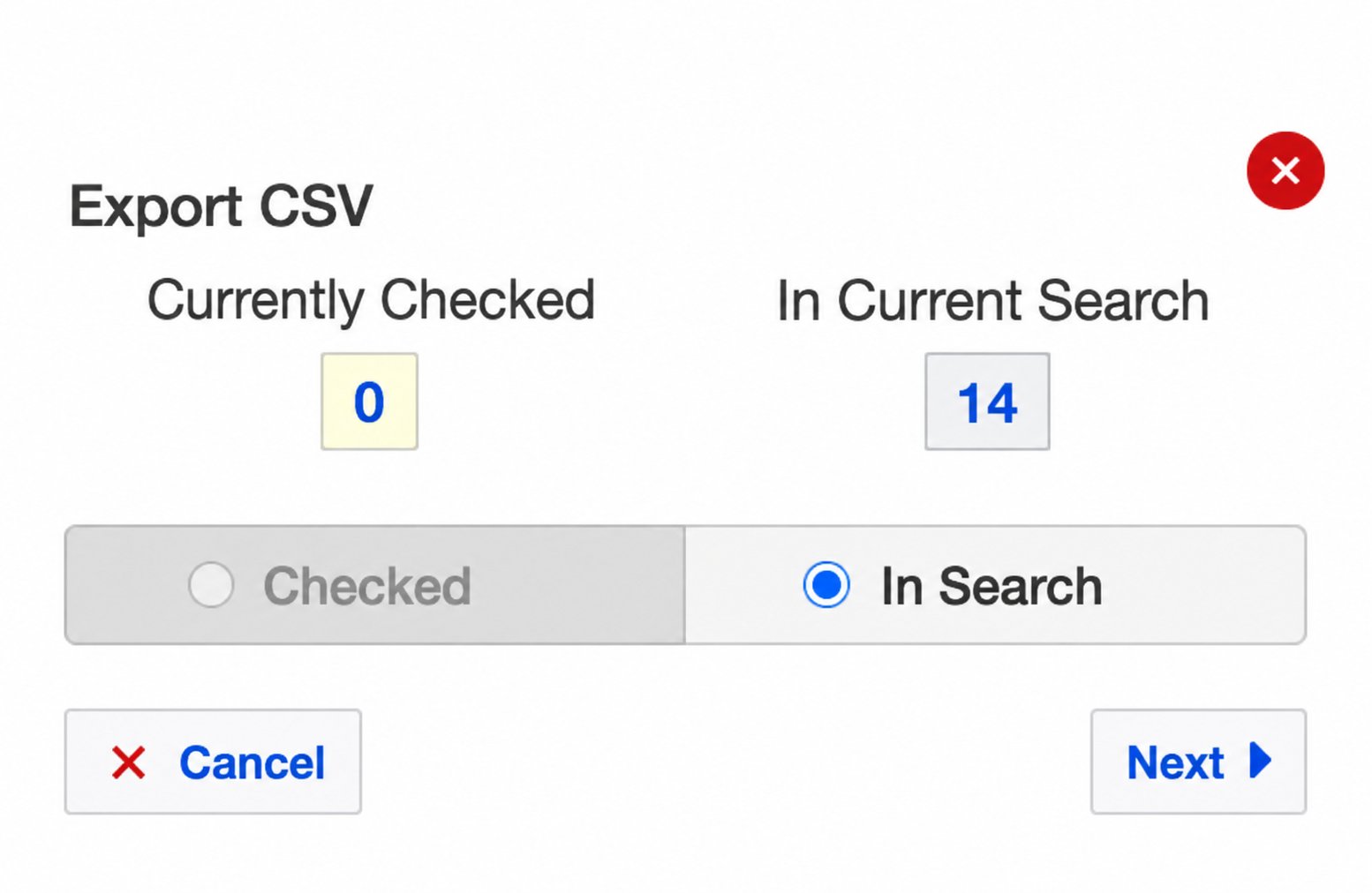
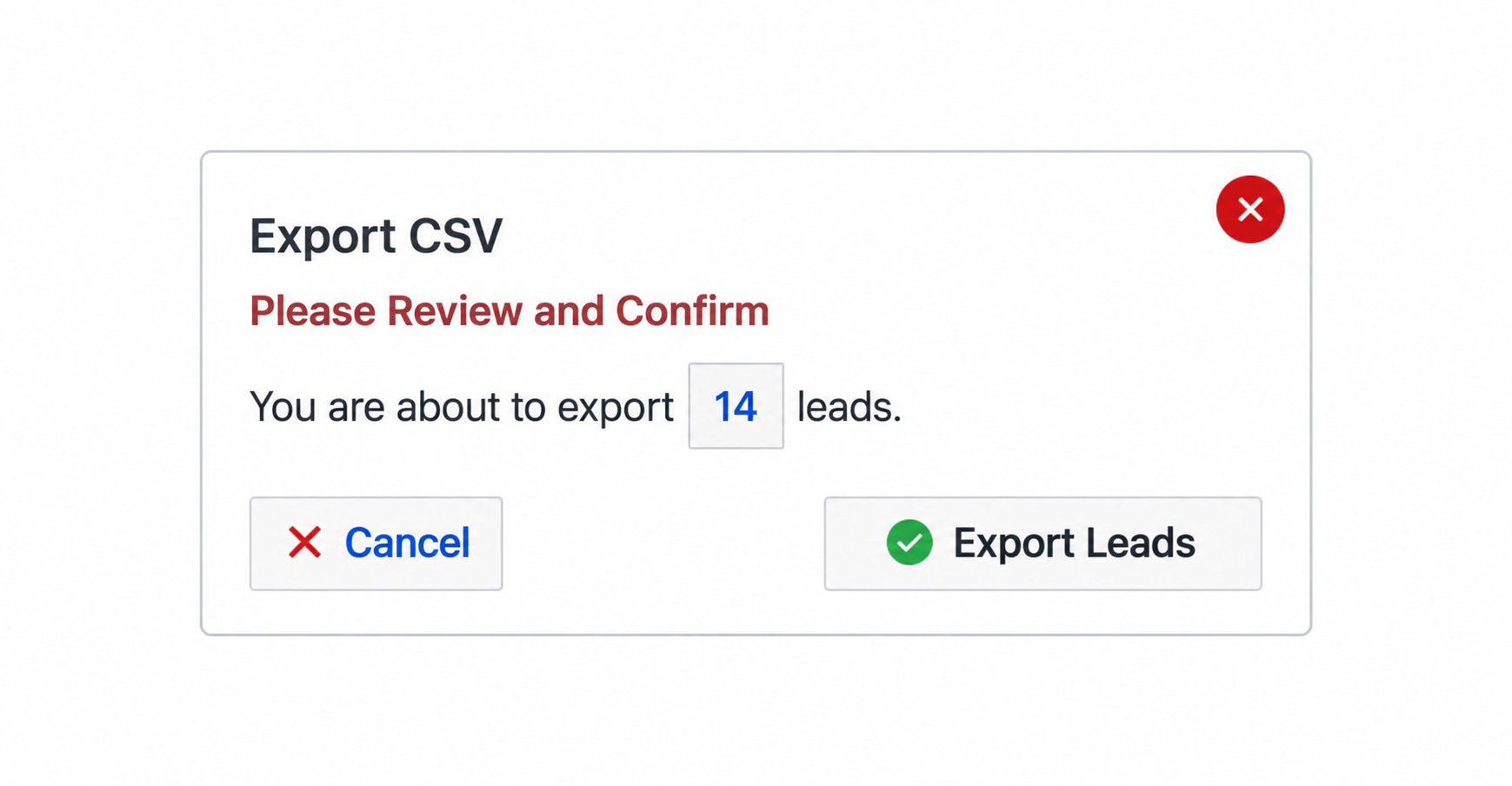
rg-leads-<SITE_UUID>@universal.rollout.com, replacing <SITE_UUID> with your Site UUID. Set the subject exactly to Lead export complete.6
Save and verify the connection
Return to the connection form and select Save.A saved connection confirms that the credentials were accepted. It does not confirm future-lead delivery or completion of the historical import. Create or update a test lead and confirm that it arrives, then confirm that the historical records appear after the export has been processed.
If the connection does not finish
The Site UUID is rejected
The Site UUID is rejected
Return to Lead Router → Configure destinations, select the correct site, and copy only the value after
/outgoing/from/ in the URL. Do not include a slash.New or updated leads are not arriving
New or updated leads are not arriving
Confirm that the Custom API destination is active, Lead created and Lead updated are enabled, and the URL, Partner ID, and optional secret match the connection form exactly.
Historical leads are missing
Historical leads are missing
Confirm that the export email’s CSV attachment or download link was sent to the site-specific Rollout import address with the exact subject Lead export complete.