This usually takes about two minutes.

Let’s connect your account

1

Open your API settings

Sign in to the Follow Up Boss account you want to connect, then use this shortcut:

Open Follow Up Boss API Settings

Open API Settings in a new tab
Can’t use the shortcut? In Follow Up Boss, go to Admin → Integrations → API Keys & Lead Email.
2

Create and copy your key

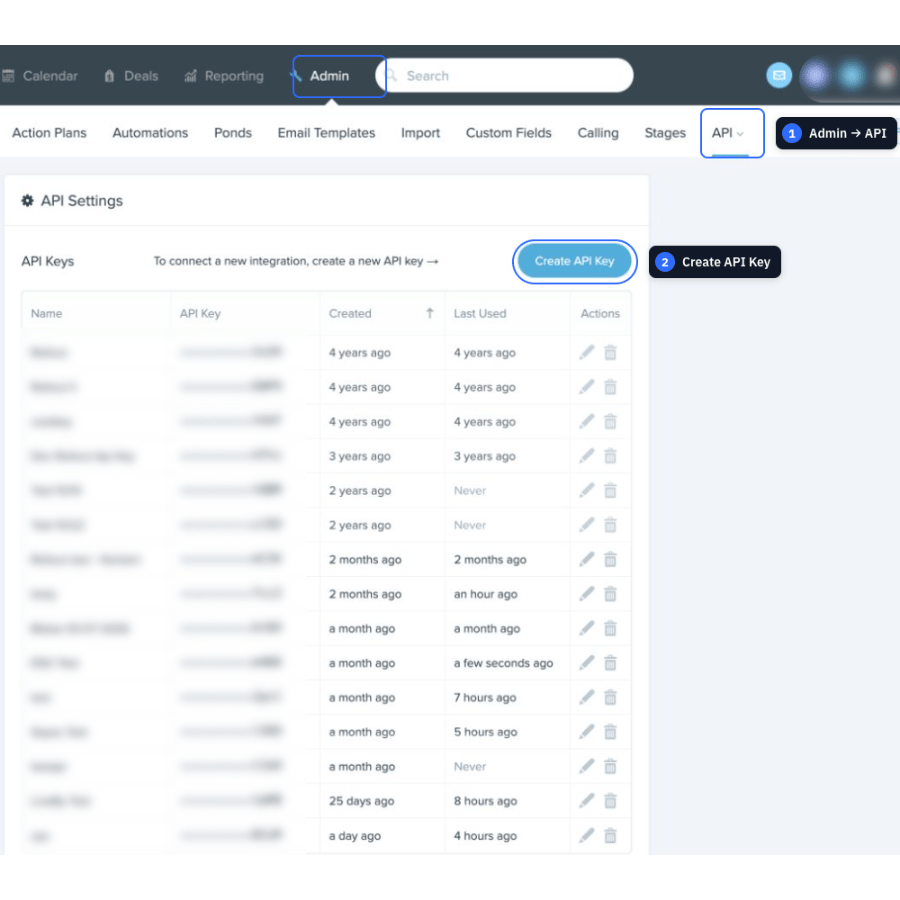
On the API Settings page, select Create API Key.
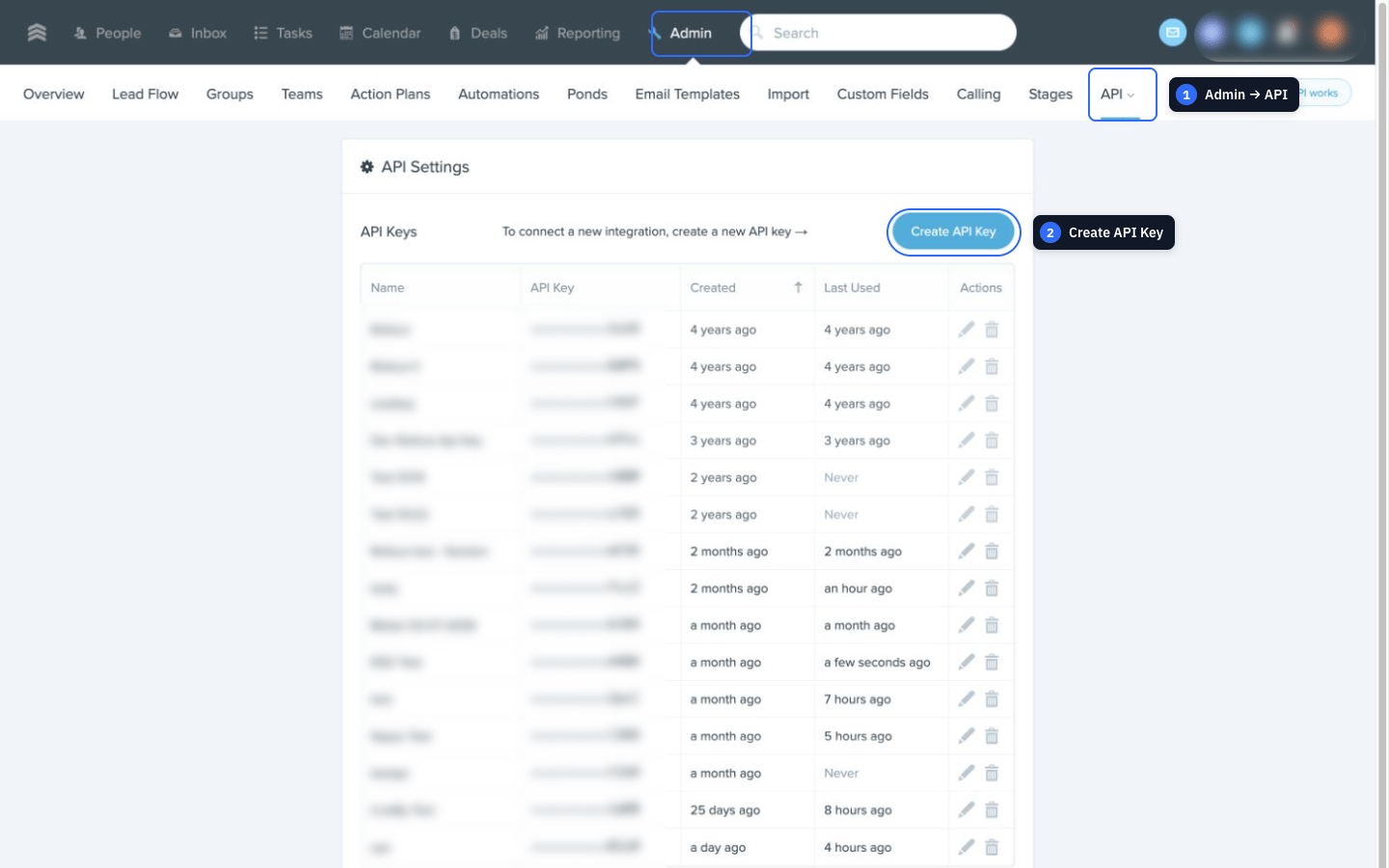
The Follow Up Boss API Settings page with Admin, API, and Create API Key highlighted and account-specific information gently blurred
A mobile close-up of the Follow Up Boss API Settings page with Admin, API, and Create API Key highlighted
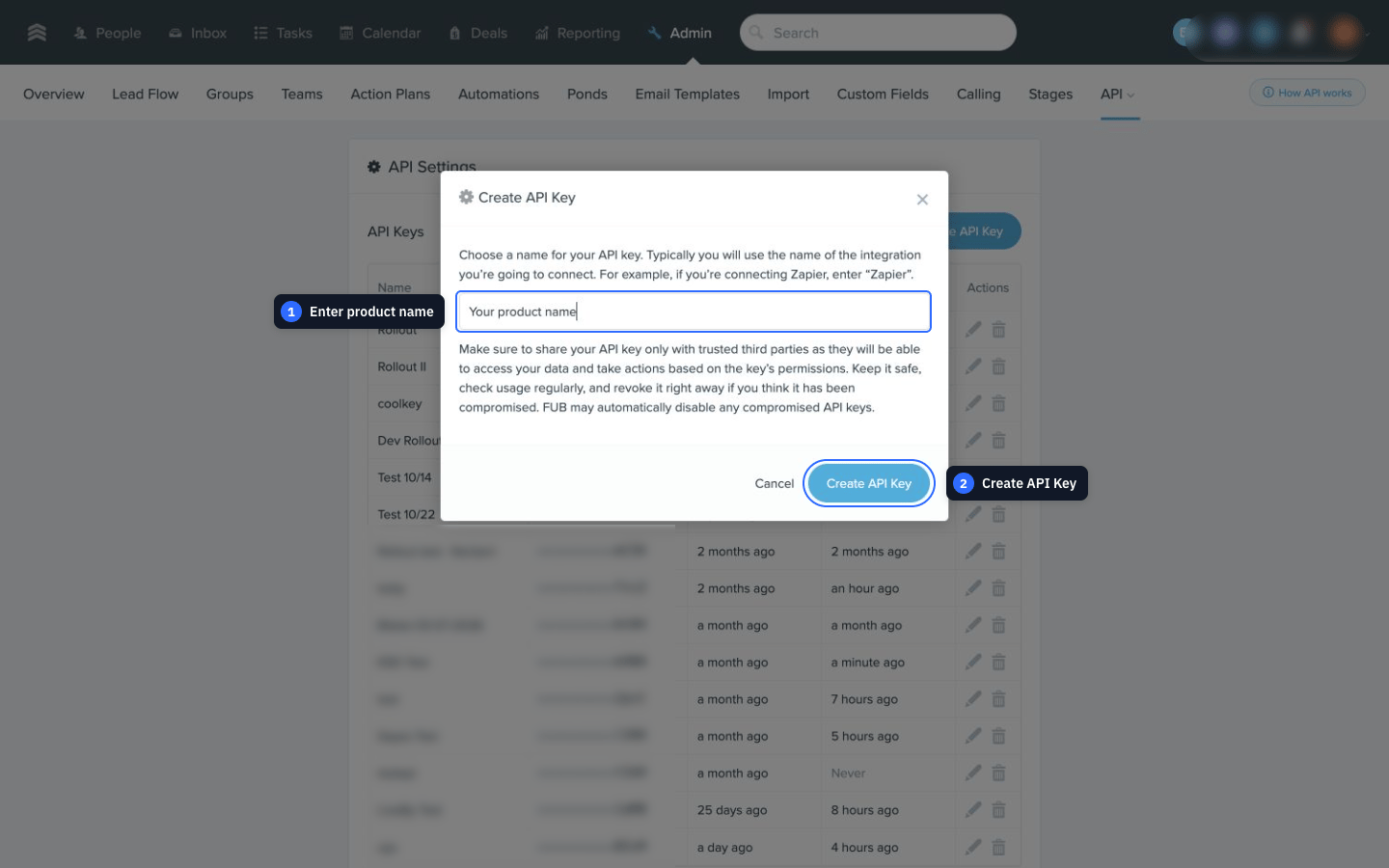
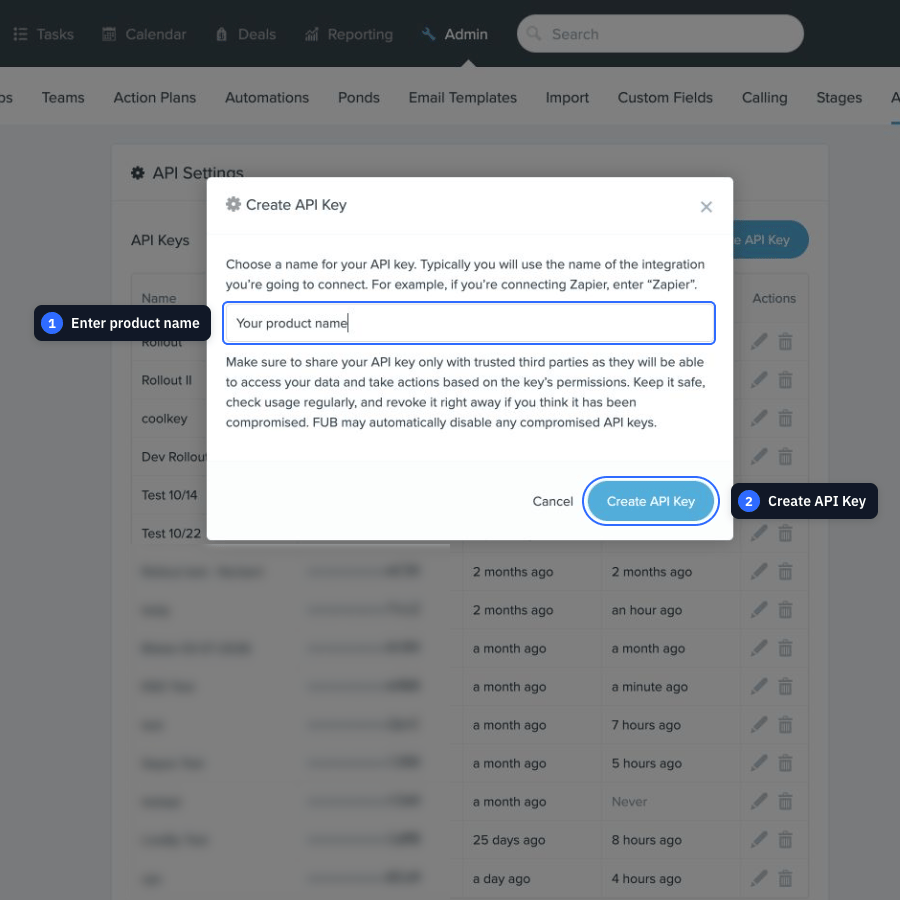
Enter the name of the product you’re connecting, then select Create API Key again.
The Follow Up Boss Create API Key window with the product name field and Create API Key button highlighted
A mobile close-up of the Follow Up Boss Create API Key window with the product name field and Create API Key button highlighted
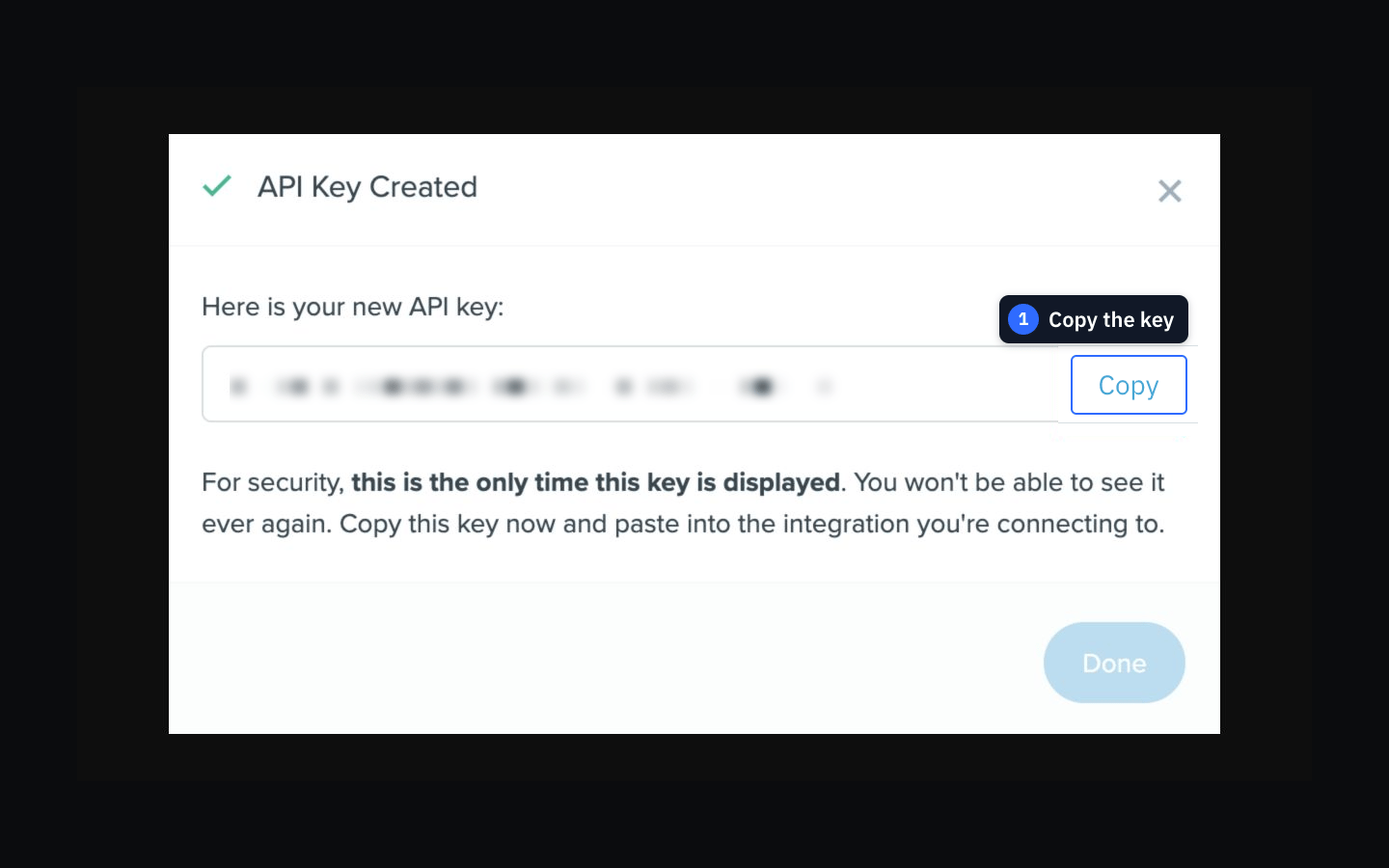
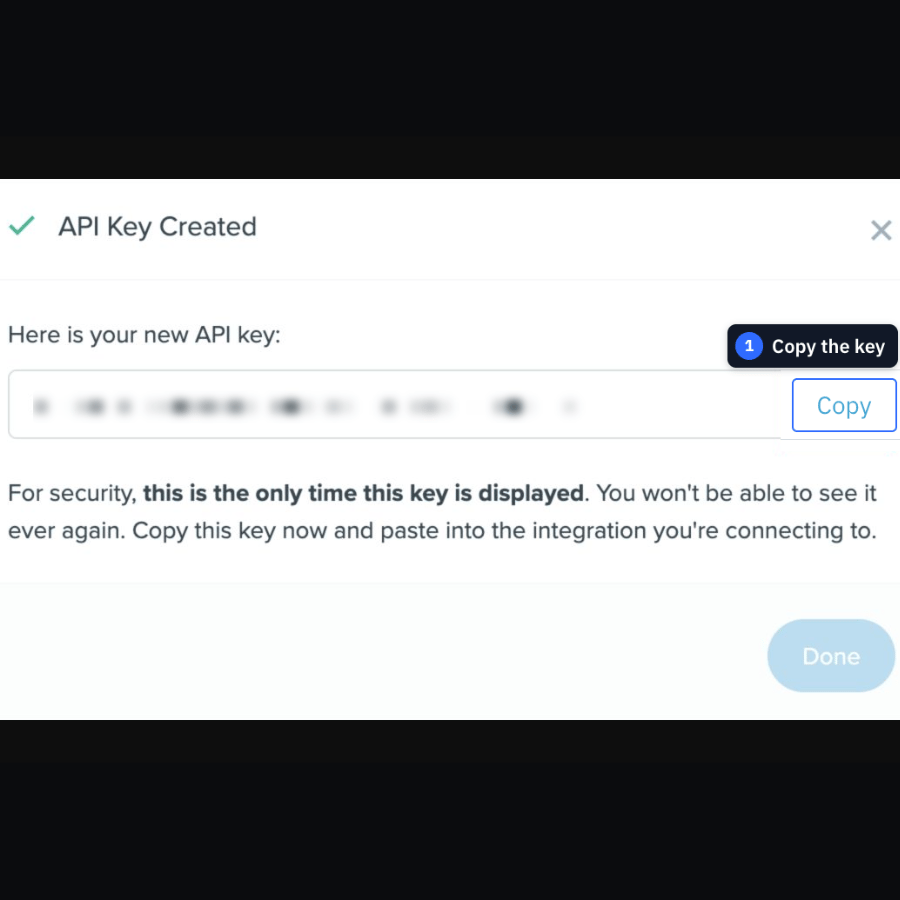
When your new key appears, select Copy. Keep this tab open until you’re connected.
The Follow Up Boss API Key Created window with the key gently blurred and Copy highlighted
A mobile close-up of the gently blurred Follow Up Boss API key with Copy highlighted
3

Paste the key and save

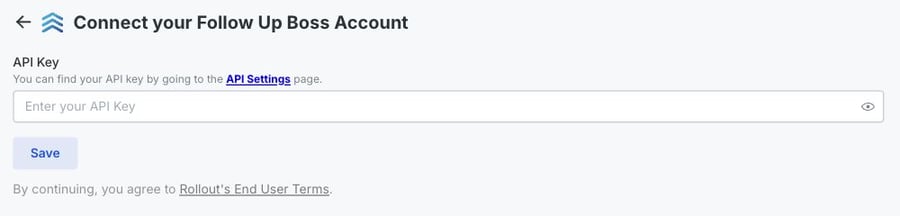
Go back to the connection window you started from. Paste the key into API Key, then select Save.
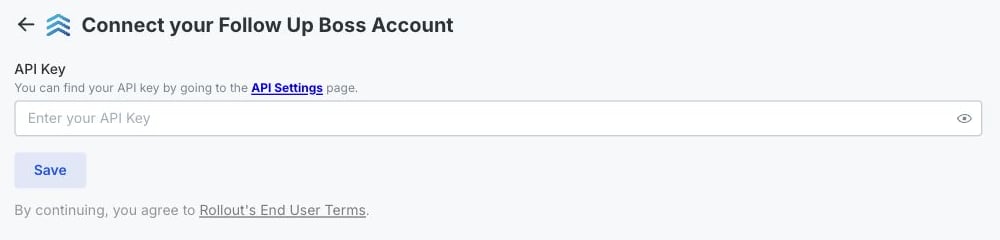
The Rollout demo app with a gently blurred example API key and the API Key field and Save button highlighted
A mobile close-up of the Rollout demo app with the API Key field and Save button highlighted
That’s it—once the connection saves, your account is linked.

Need a hand?

Having trouble saving? Copy and paste the key once more. If it still doesn’t connect, contact the team that sent you this guide. They’ll help you finish.