

Let’s connect your account
1
Sign in to HighLevel
Open HighLevel and sign in to the account that can access the agency or sub-account you want to connect.
Open HighLevel
Sign in to the HighLevel account you will authorize
2
Choose the installation scope and connect
In the product you are connecting, choose HighLevel. Open I want to install app for, then select one of these options: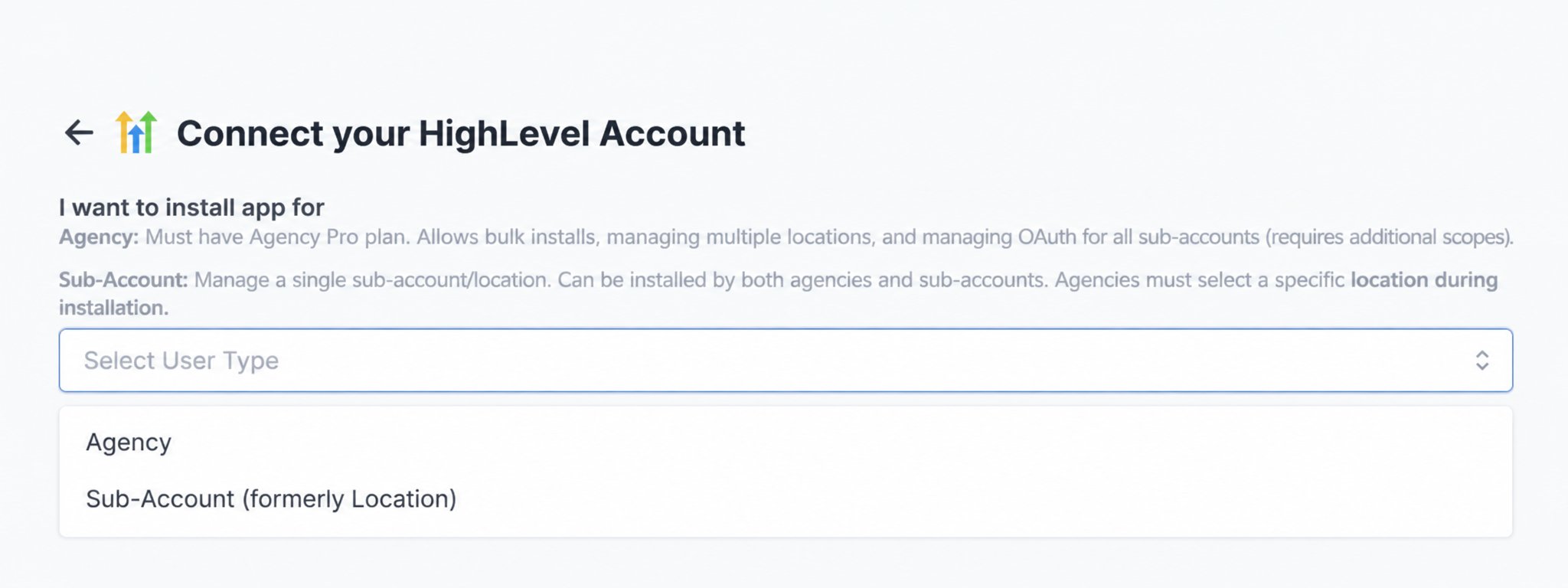
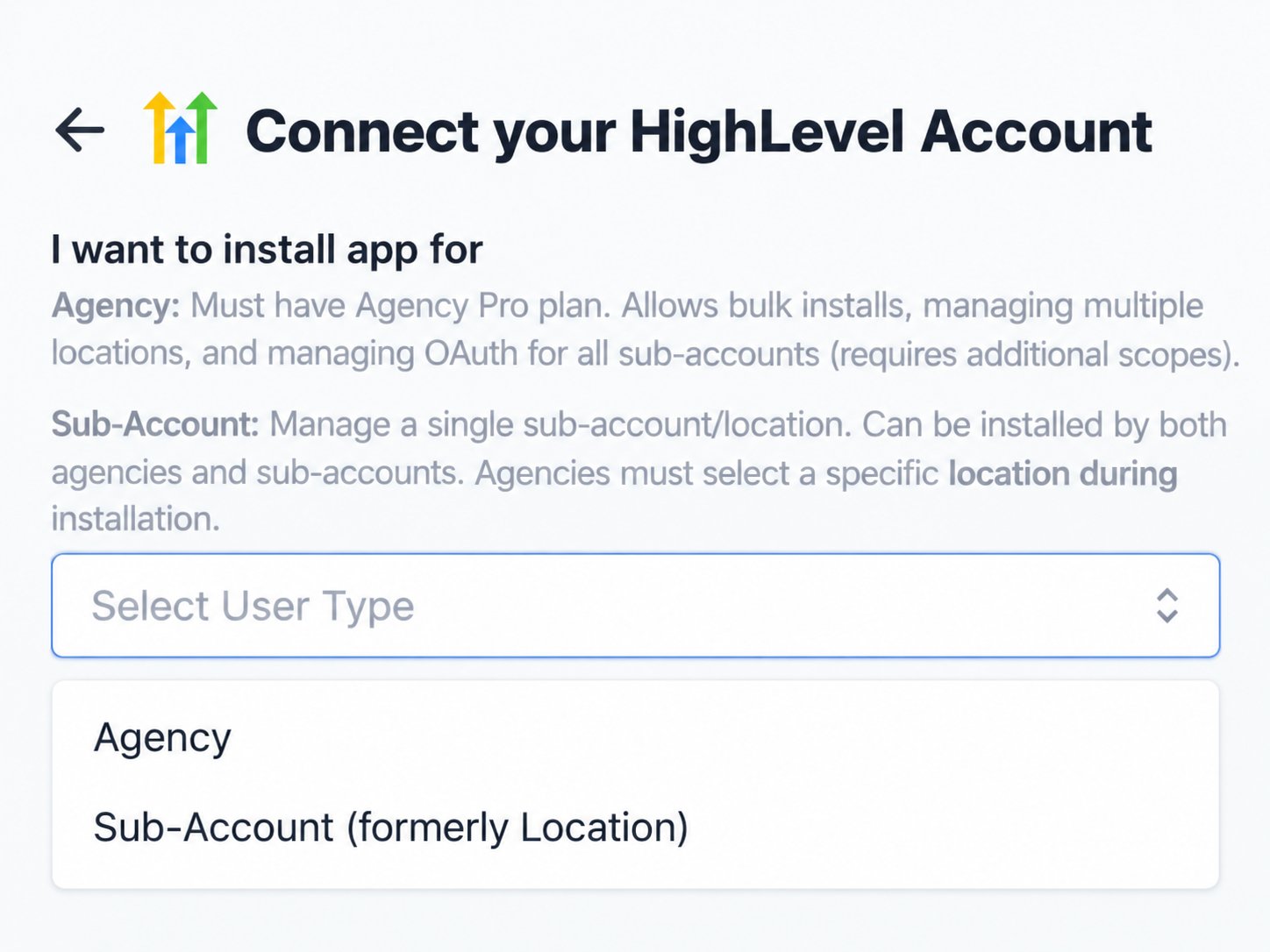
- Agency connects the agency and allows Rollout to manage its locations. This path requires an Agency Pro plan and requests additional agency-level permissions.
- Sub-Account (formerly Location) connects one location. Both agency users and sub-account users can use this path; agency users choose a specific location later.
3
Continue to the installation
If HighLevel asks you to sign in again, sign in with the same account and return to the authorization page.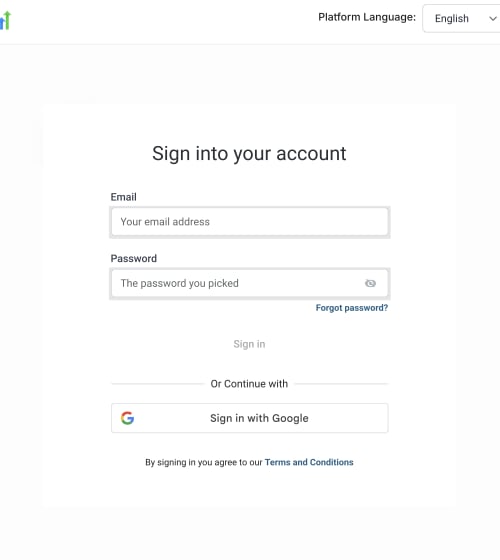
4
Review the requested permissions
On the Install confirmation page, review the permissions requested by Rollout. The Agency path includes agency-level access such as locations and OAuth management in addition to contacts, users, opportunities, conversations, objects, and associations. The Sub-Account path requests only the permissions needed for a single location.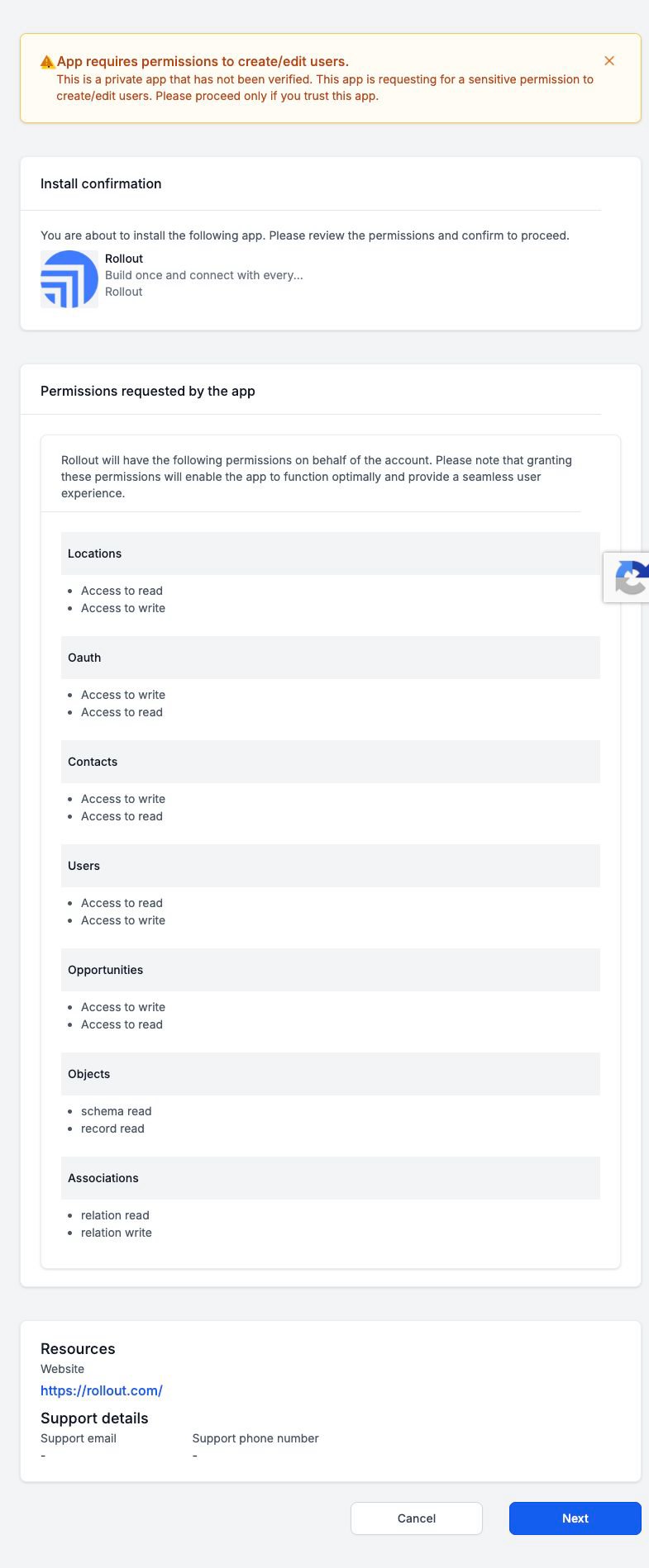
5
Select the agency or sub-account
On Select an account, choose the account that matches the path you selected in Rollout: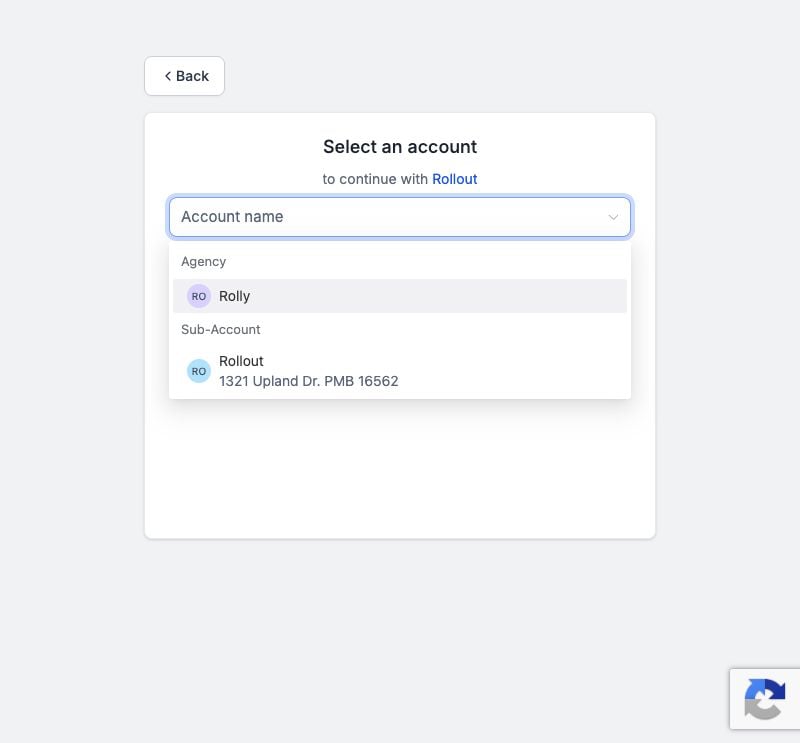
- For an Agency installation, select the agency listed under Agency.
- For a Sub-Account installation, select the location listed under Sub-Account. Agency users must still choose one specific location here.
6
Confirm the connection
Return to the original product tab. Your HighLevel account should appear, or the connection should show as connected.HighLevel sends the authorization result back automatically. Do not create a Marketplace app or copy OAuth client credentials.
If the connection does not finish
The HighLevel page did not open
The HighLevel page did not open
Allow pop-ups for the product you are connecting, then select Connect Account again.