

Let’s connect your account
1
Confirm the Jungo Salesforce organization
Sign in to the Salesforce production organization or sandbox that contains your Jungo data. Confirm that the user can access the Jungo records that should be available to the integration.
2
Choose the Salesforce environment
In the product you are connecting, choose Jungo. Under Select your Salesforce Environment, select:
- Prod for your normal Jungo organization.
- Sandbox for a Salesforce sandbox.
3
Sign in to Salesforce
Select Connect Account. On the Salesforce page, sign in with the user for the Jungo organization you want to connect and complete Salesforce verification if prompted.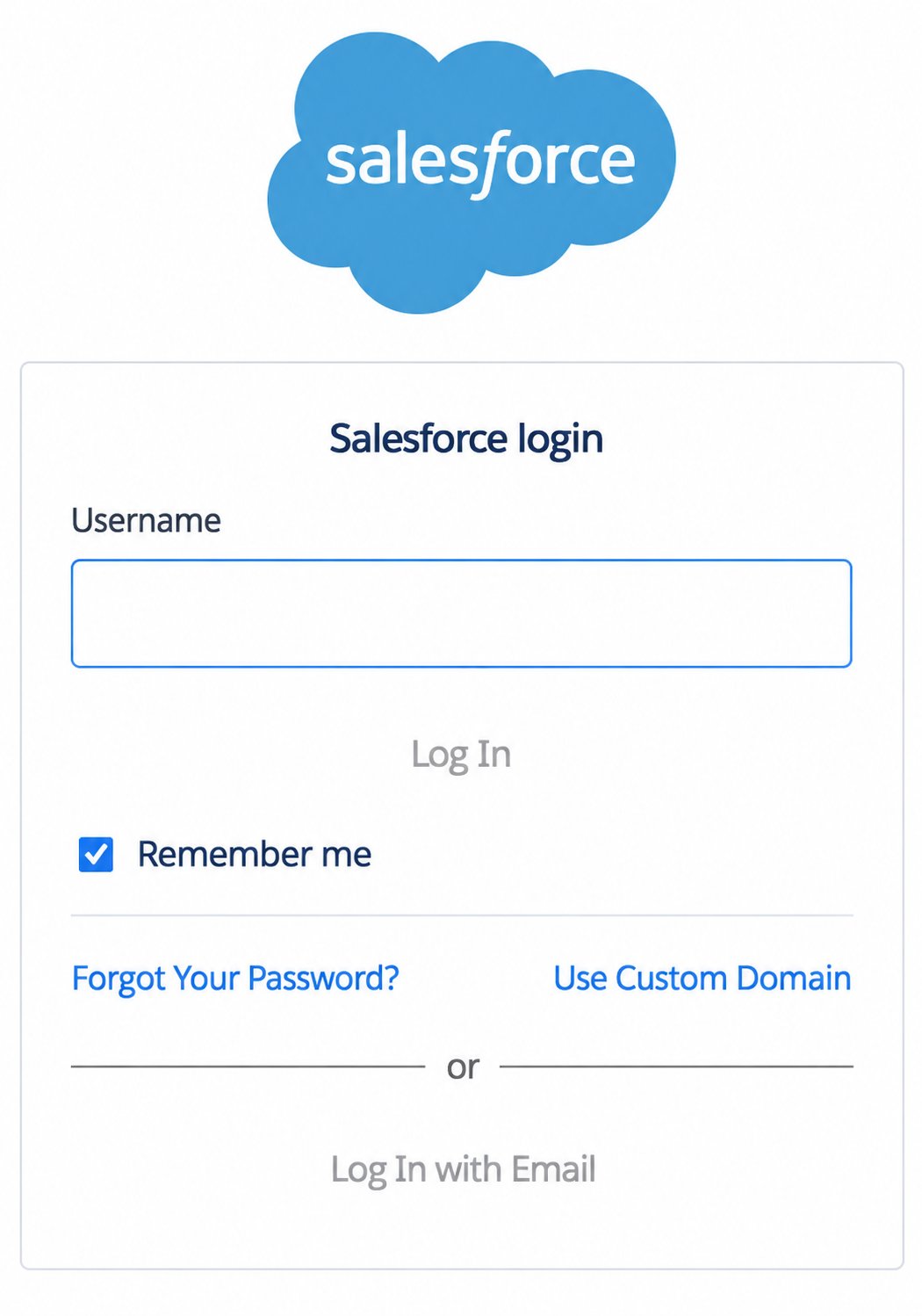
4
Allow Rollout to access Salesforce
On the Allow Access? page, review the permissions requested by Rollout, then select Allow.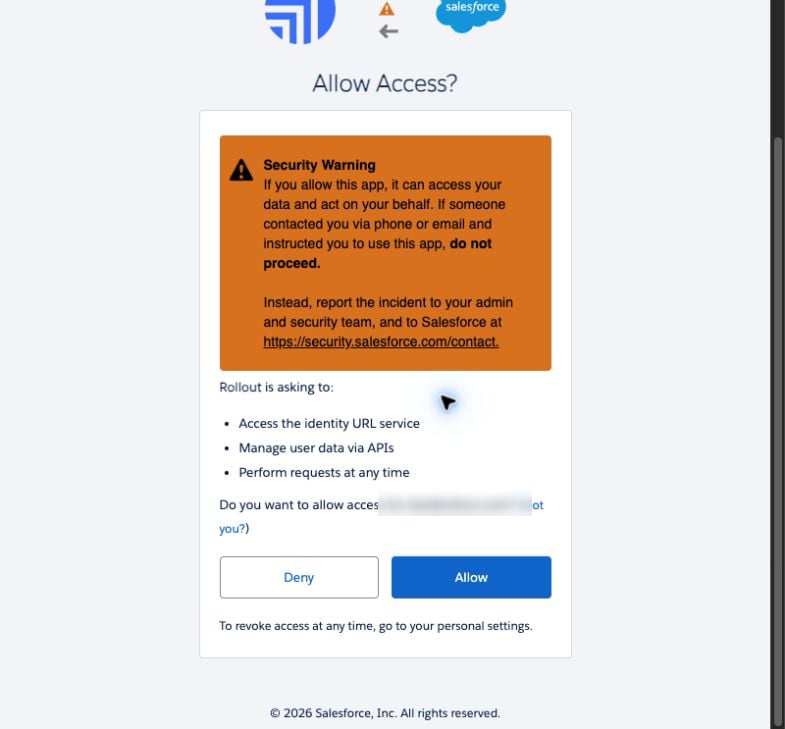
5
Return and confirm the connection
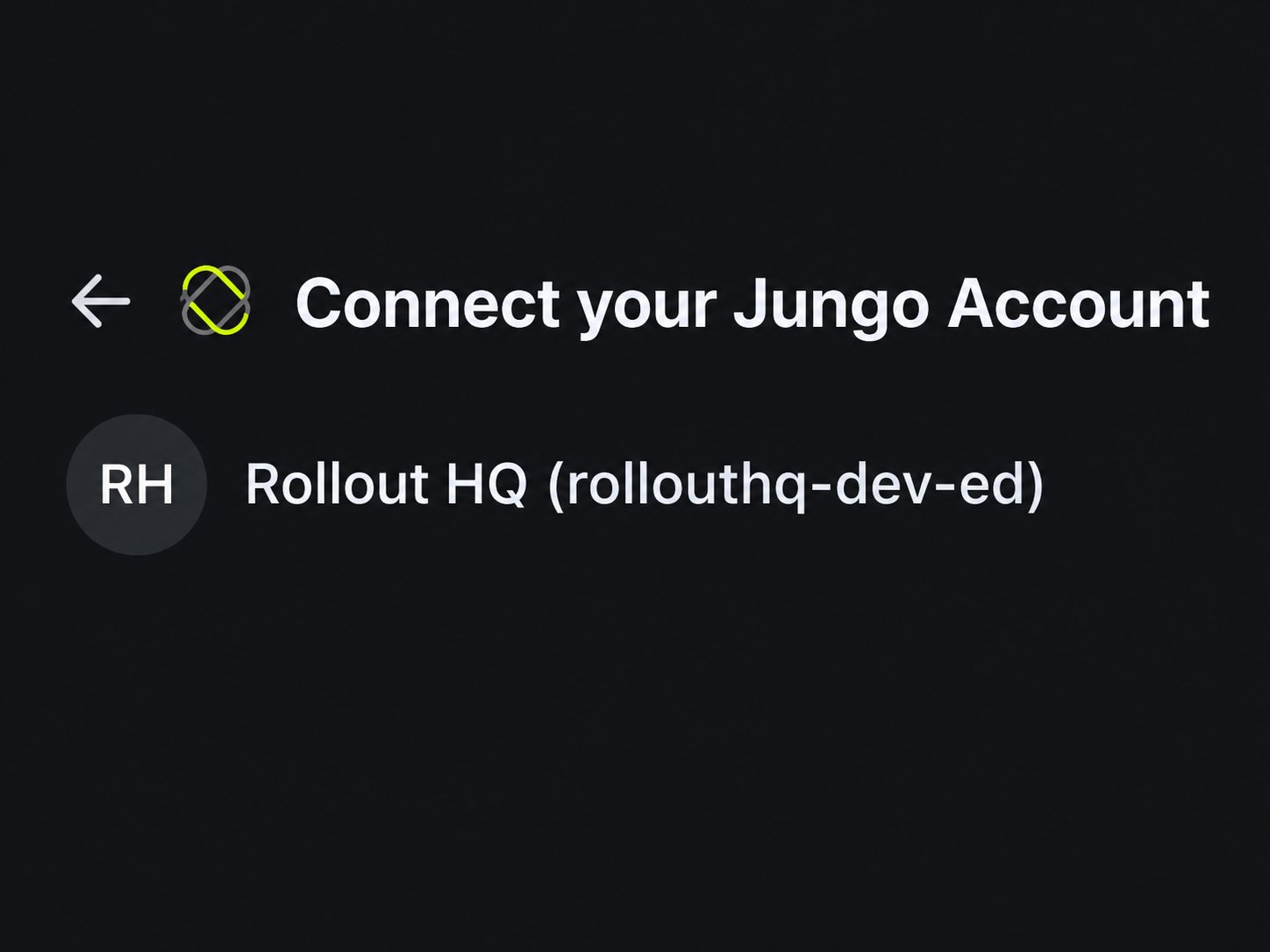
Return to the original product tab. Your Jungo account and Salesforce organization should appear as connected.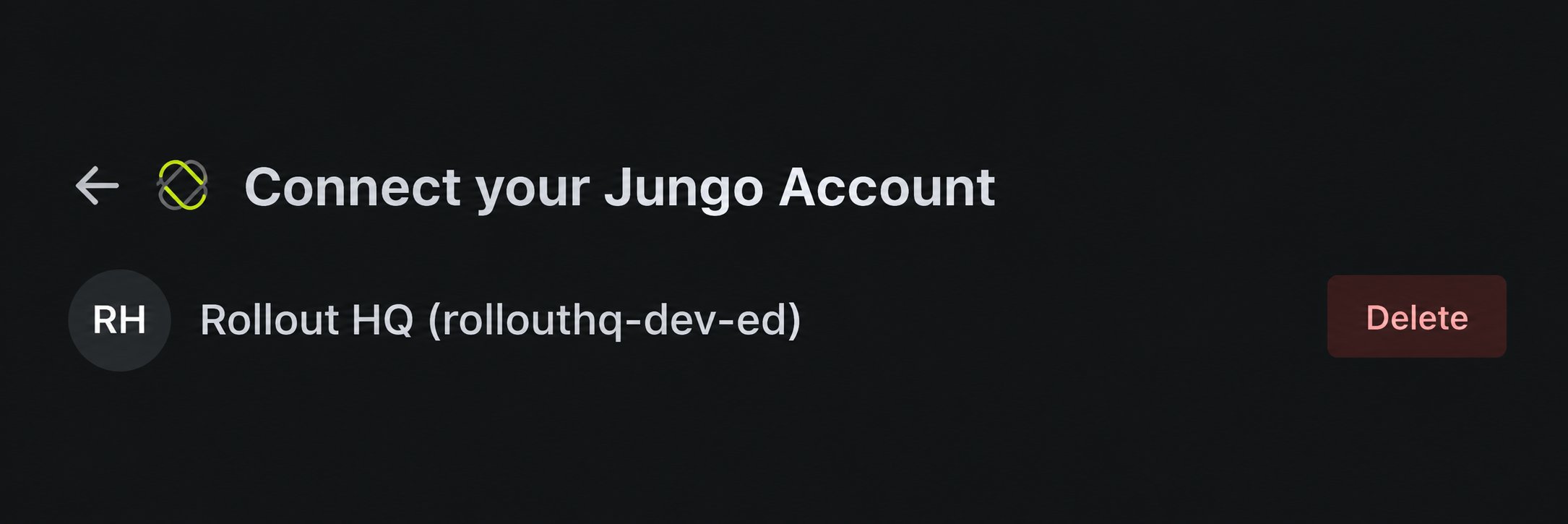
Salesforce authorization reference
Salesforce app access requests
Review Salesforce’s official authorization instructions
If the connection does not finish
The Salesforce page did not open
The Salesforce page did not open
Allow pop-ups for the product you are connecting, then select Connect Account again.