

entitiesToSync in code.
For example, a CRM app that only reads people can use the defaults. An app that also reads notes and tasks should enable notes and tasks before users connect.
This setting selects types of data, not individual records. It matters when using the Universal API as well as webhooks and Sync to DB.
Configure new connections
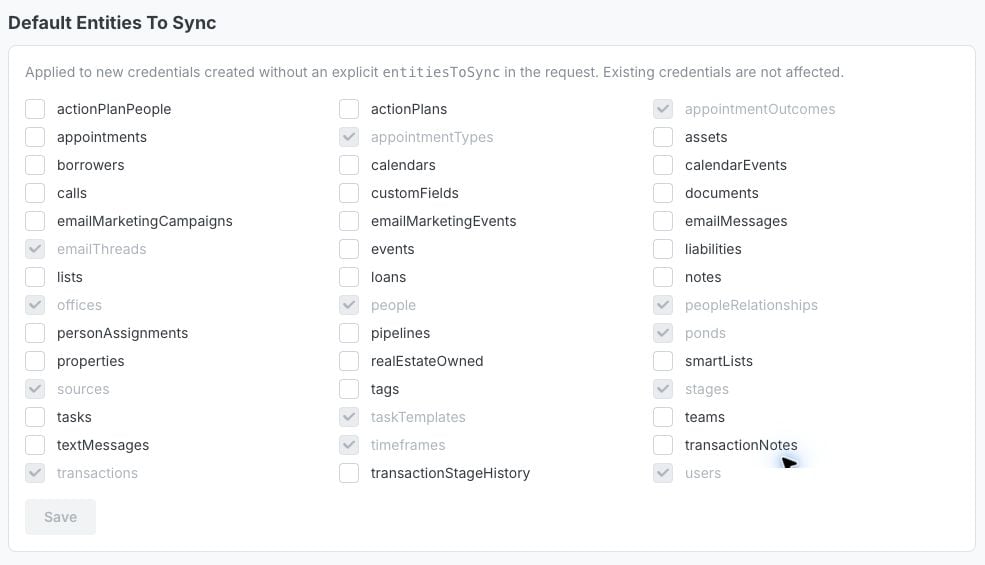
Choose your defaults in the dashboard, or pass an explicit selection in code.Set defaults in dashboard Settings
- Open the Rollout dashboard and select your account.
- Open Settings and scroll to Default Entities To Sync.
- Select the optional data types your app needs, such as
notesandtasks, then click Save.
entitiesToSync selection. To use them with Rollout Link, omit the prop:
Set the selection in code
Pass your selection to Rollout Link when rendering the connection UI. An explicit selection takes precedence over the dashboard defaults. This example enables notes and tasks in addition to the always-synced entities:- React
- JavaScript
CredentialForm and AddCredentialForm.
Changing the prop does not update accounts that are already connected. Use Update an existing connection for those credentials.
Defaults and optional data types
Always synced, where supported:people, users, transactions, peopleRelationships, offices, appointmentOutcomes, appointmentTypes, emailThreads, sources, stages, taskTemplates, timeframes, and ponds. You do not need to include these in entitiesToSync, and they cannot be disabled through this setting.
Optional types must be enabled for your connection. These are common examples by API category; availability varies by connector:
Other optional keys are
actionPlanPeople, actionPlans, emailMarketingCampaigns, emailMarketingEvents, lists, personAssignments, pipelines, smartLists, tags, teams. Check the connector’s syncable types before using them.
If your SDK version does not expose a key in its component props, configure that type through the dashboard or Update Credentials API.
The credential’s Entities To Sync section in the dashboard shows the syncable types for its connector. Enabling a type does not add support to a connector that does not provide it.
Update an existing connection
You can enable another entity without deleting the credential or asking the user to reconnect.In the dashboard
- Open the credential for the connected account you want to update.
- Find Entities To Sync and select the additional types your app needs. Keep the other types you still use selected.
- Click Save. Rollout resets the connection’s sync so the new selection can be fetched.
Through the API
Use Update Credentials with a token for the consumer associated with the credential:true entries are saved. Omit optional types your app no longer needs; sending false removes them from your selection. Always-synced types remain enabled. If a credential is shared with another Rollout app, data types requested by that app may continue syncing.
Wait for the data to sync
A successful connection or settings update does not mean the newly enabled data has finished syncing. Allow the sync to run before expecting complete results. Timing depends on the connector and the amount of data. If you receive a message such asThis credential is configured to not sync Notes., waiting alone will not fix it: the entity needs to be enabled on the credential used in your request. Follow Fix an entity that is not configured to sync.
For initial sync completion notifications, see the credential sync completion callback.