

Load the app script
Rollout shows your app only after your page says it’s ready, and sizes its frame to the height your page reports. Rollout’s app script does both. Load it on the page your app URL serves:Sizing
The frame’s height follows your content, so let your content size itself. Abody set to height: 100% or 100vh keeps the frame at whatever height it
has rather than following the content. The CRM may set a minimum and maximum
height. Past the maximum, your page scrolls inside its frame.
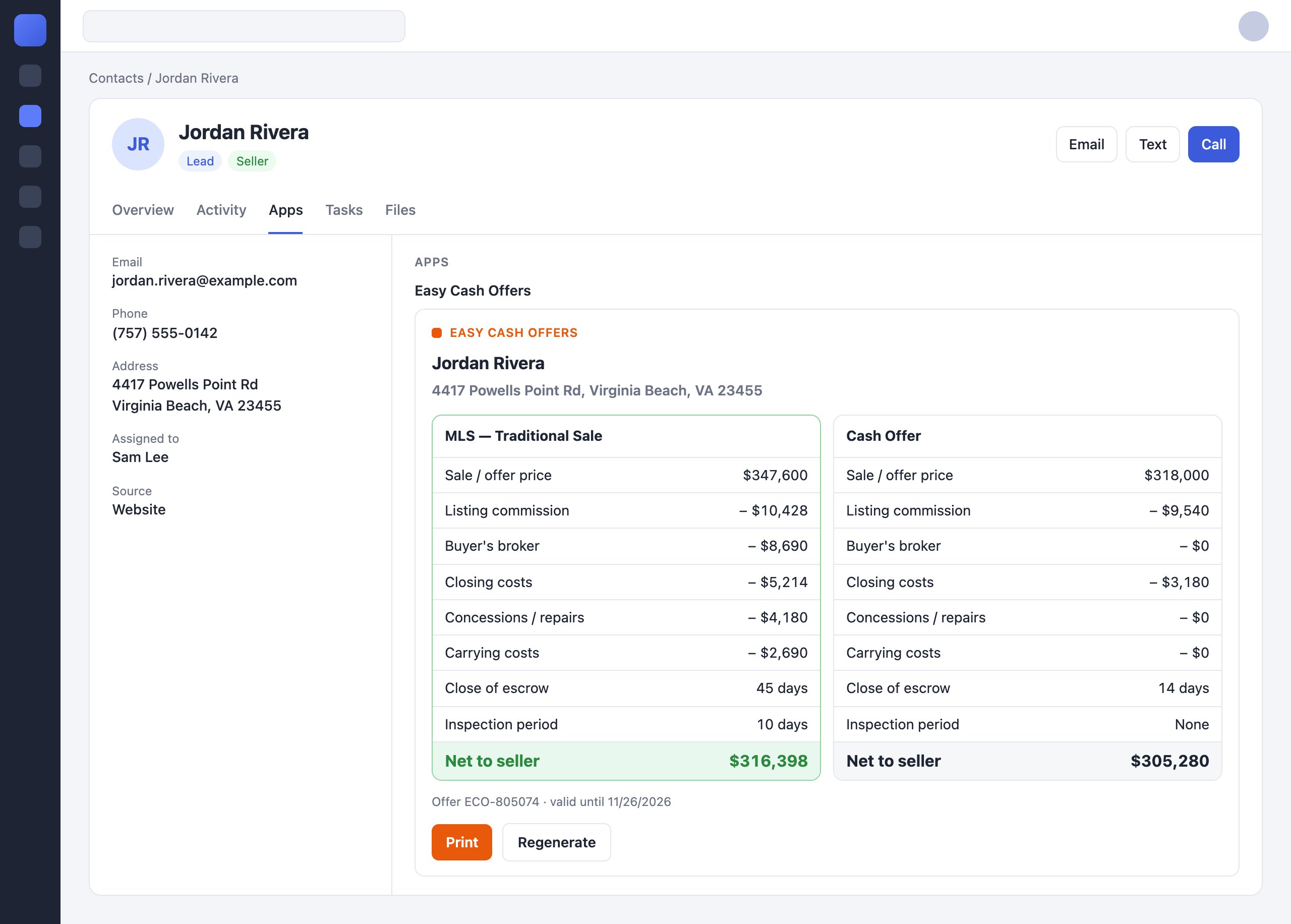
The same app after it shows an offer. Its frame grew to fit the new content, with no scroll bar. Rollout shows the app's name above its frame.
When your page reloads
Your page keeps the context it was loaded with. Rollout loads your page again, with a new context, when:- the agent opens another contact, so each load is about one contact;
- the CRM refreshes its apps, for example after the agent turns an app on;
- your page asks for it, with
reload().
Signing agents in
Each load brings a freshly signed context, and that, not a cookie, is how your app knows who’s looking. Browsers may block or partition cookies in a third-party frame, so don’t rely on a session cookie set outside it. The first time an agent opens your app, your server won’t know which of your users they are. One way to handle it:- Your server verifies the context and looks up the agent’s link,
(
x.marketplaceId,user.id). See Identifying the agent. - If there’s no link, your page shows a Connect button.
- The button opens your sign-in page in a popup, with a short-lived, single-use token your server issued for this agent. Don’t sign in inside the frame: Rollout’s frame blocks other origins, such as a sign-in provider, and popups run outside the frame’s sandbox.
- Once the agent signs in, your server links them, and the popup tells your
frame it’s done, for example with
window.opener.postMessage. - Your page calls
reload(). Rollout reloads your frame with a fresh context, your server finds the link, and the agent sees your app.
reload() reloads your app’s frame, and only yours, at a freshly signed URL.
Use it after anything that should change what your page shows, such as the
agent connecting an account in a popup.
Let Rollout frame your page
- Allow framing. Don’t send
X-Frame-Options. If you send aContent-Security-Policywithframe-ancestors, listhttps://universal.rollout.com, the origin of each CRM page your app shows on, andhttps://dashboard.universal.rollout.comfor previews. Browsers check every ancestor of the frame. - Allow Rollout’s script. If your CSP limits
script-src, addhttps://universal.rollout.com. - Stay on your origin. Rollout’s frame blocks origins other than the marketplace’s approved apps’ in your frame, and accepts your page’s messages only from your app URL’s origin. A redirect to another domain inside the frame, such as a sign-in provider, won’t show. Use a popup.
What the iframe allows
Your frame is sandboxed withallow-scripts allow-same-origin allow-forms allow-popups allow-popups-to-escape-sandbox.
Open a popup for sign-in and for downloads.
Using Follow Up Boss’s script
An app built for Follow Up Boss can keep FUB’sembeddedApps-v1.0.0.js: the
Rollout frame speaks the same protocol. FUB’s script has no reload().
The protocol
If you’d rather not load a script, implement your side of the protocol yourself, withpostMessage to window.parent:
Rollout accepts these messages only from your frame, and only from your app
URL’s origin.