> ## Documentation Index
> Fetch the complete documentation index at: https://rollout.com/docs/llms.txt
> Use this file to discover all available pages before exploring further.
# Wise Agent
> Request Wise Agent OAuth credentials, configure Rollout, and connect a Wise Agent account.
Wise Agent reviews OAuth access requests manually. An administrator completes the one-time setup first; users can then connect their own Wise Agent accounts through Rollout.
## Request OAuth credentials from Wise Agent
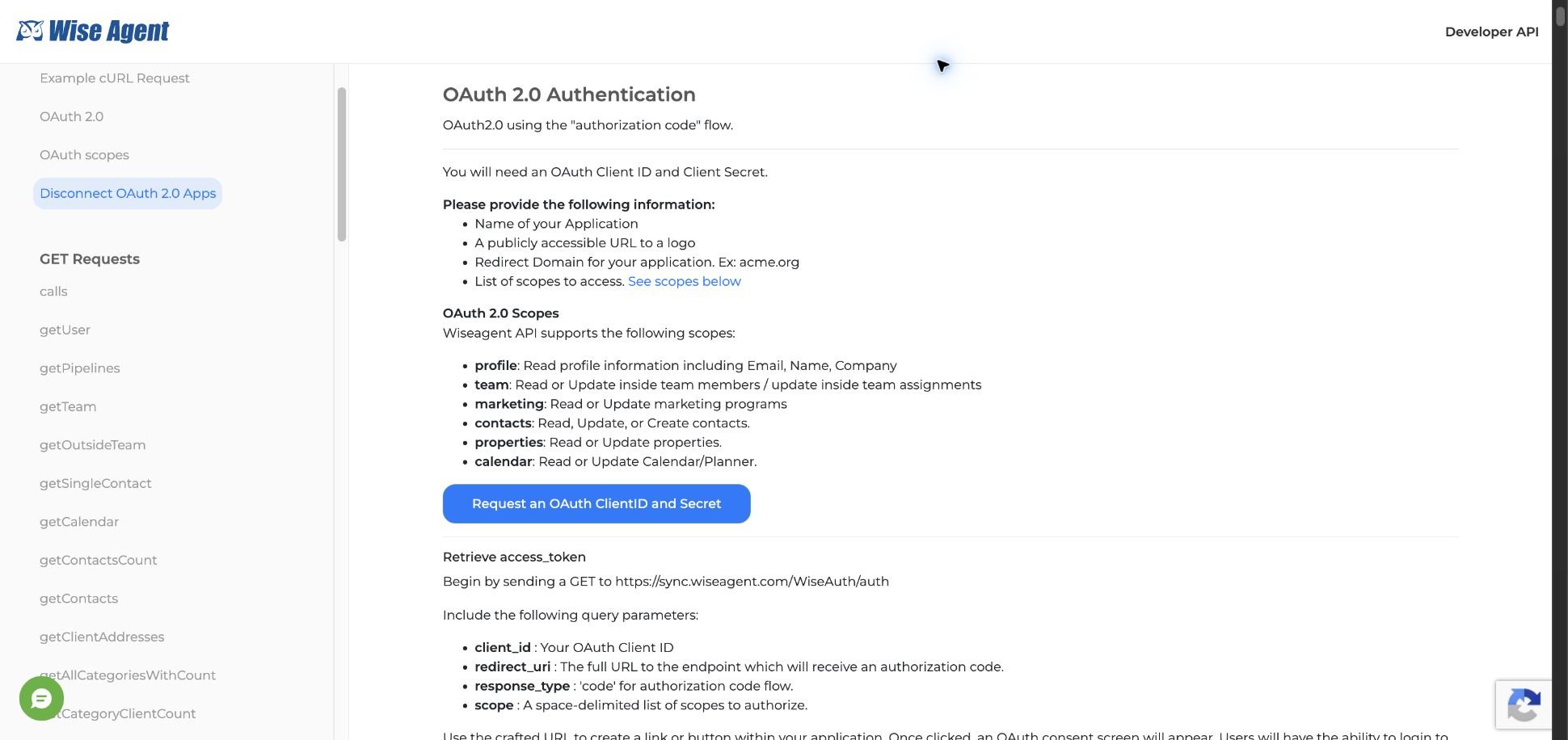
Open the [Wise Agent Developer API page](https://wiseagent.com/docs/api.asp). In the left navigation, select **OAuth 2.0**.
Review the required application information and supported scopes, then select **Request an OAuth ClientID and Secret**.
 Enter the following information in the form that opens:
* **Your Full Name**
* **Your Email Address**
* **Name of Your Company**
* **Your Job Title**
* **What are the functions of your platform?** Explain that Homeowner.ai syncs CRM data through Rollout.
* **Are your clients' real estate centric?** Select the answer that applies.
* **Do your clients currently use Wise Agent?** Select the answer that applies.
* **What kind of integration are you looking to build?** Describe the Wise Agent and Homeowner.ai integration and include the production redirect URI shown below.
* **This integration involves an AI Model**: select this checkbox because Homeowner.ai includes AI functionality.
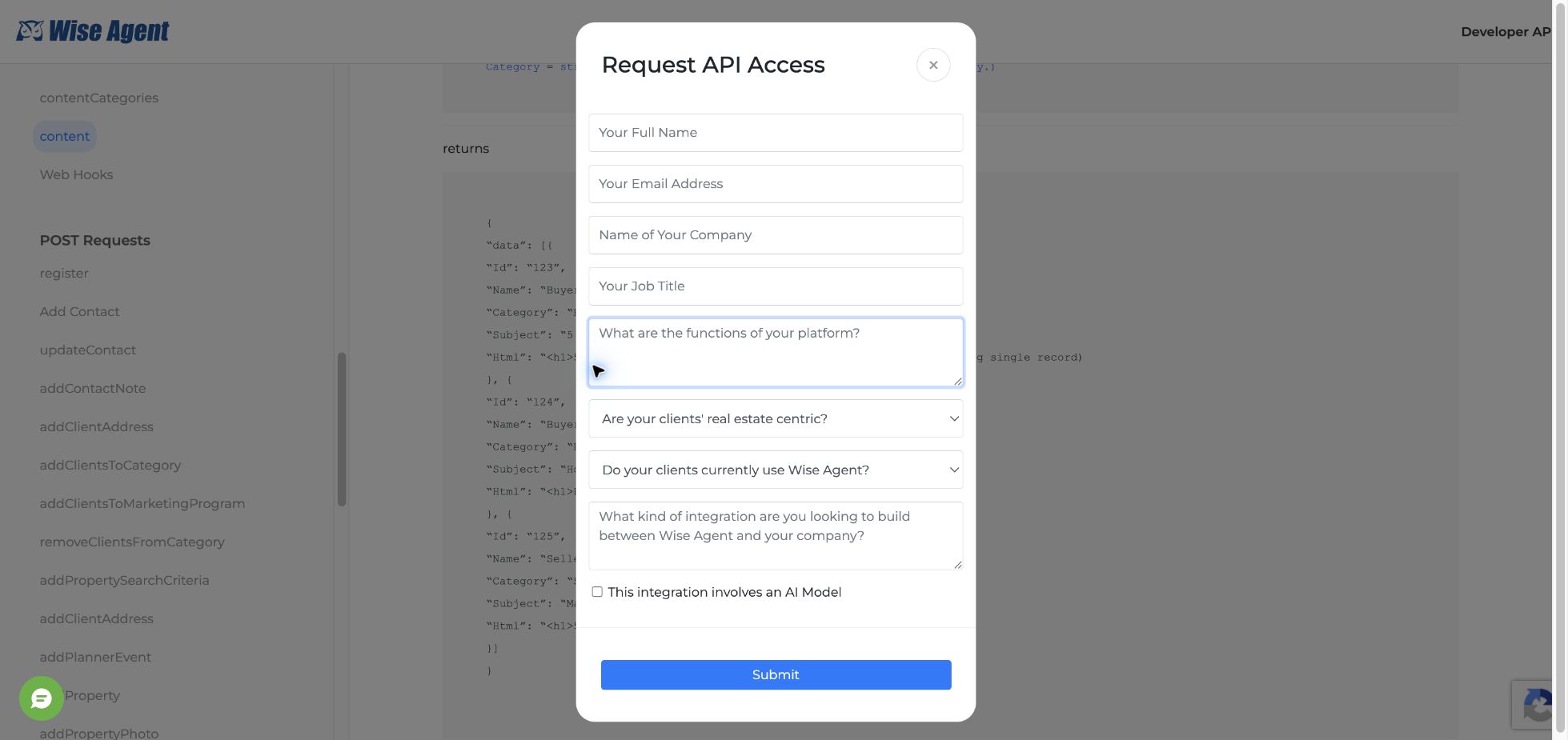
Enter the following information in the form that opens:
* **Your Full Name**
* **Your Email Address**
* **Name of Your Company**
* **Your Job Title**
* **What are the functions of your platform?** Explain that Homeowner.ai syncs CRM data through Rollout.
* **Are your clients' real estate centric?** Select the answer that applies.
* **Do your clients currently use Wise Agent?** Select the answer that applies.
* **What kind of integration are you looking to build?** Describe the Wise Agent and Homeowner.ai integration and include the production redirect URI shown below.
* **This integration involves an AI Model**: select this checkbox because Homeowner.ai includes AI functionality.
 Include this production redirect URI in the integration description:
```text theme={null}
https://universal.rollout.com/api/oauth/redirect
```
Request these OAuth scopes:
```text theme={null}
profile team contacts marketing properties calendar
```
Before submitting, confirm that the redirect URI is exact and that every required scope is included.
Select **Submit**. Wise Agent reviews the request manually and sends the **Client ID** and **Client Secret** after approval.
Store the Client Secret in your password manager, then enter both values in the Wise Agent OAuth configuration in Rollout. Treat the Client Secret like a password.
## Connect a Wise Agent account
After the OAuth application is configured, connecting an account usually takes about two minutes.
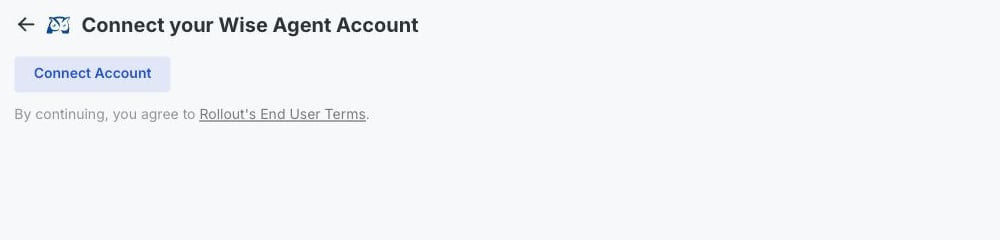
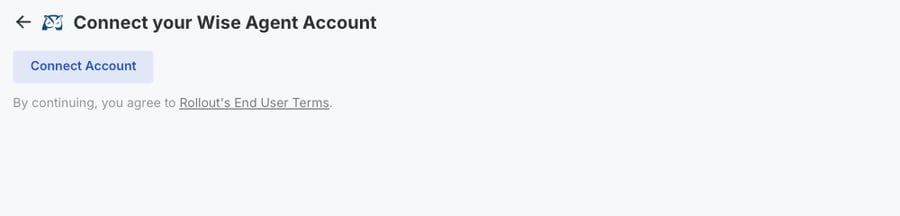
In the Rollout-powered connection window, select **Connect Account**.
In the secure Wise Agent window that opens, sign in with the Wise Agent account you want to connect.
Review the requested permissions, then approve the connection. The window closes and returns you to the product.
Your Wise Agent account is now connected.
Include this production redirect URI in the integration description:
```text theme={null}
https://universal.rollout.com/api/oauth/redirect
```
Request these OAuth scopes:
```text theme={null}
profile team contacts marketing properties calendar
```
Before submitting, confirm that the redirect URI is exact and that every required scope is included.
Select **Submit**. Wise Agent reviews the request manually and sends the **Client ID** and **Client Secret** after approval.
Store the Client Secret in your password manager, then enter both values in the Wise Agent OAuth configuration in Rollout. Treat the Client Secret like a password.
## Connect a Wise Agent account
After the OAuth application is configured, connecting an account usually takes about two minutes.
In the Rollout-powered connection window, select **Connect Account**.
In the secure Wise Agent window that opens, sign in with the Wise Agent account you want to connect.
Review the requested permissions, then approve the connection. The window closes and returns you to the product.
Your Wise Agent account is now connected.