> ## Documentation Index
> Fetch the complete documentation index at: https://rollout.com/docs/llms.txt
> Use this file to discover all available pages before exploring further.
# Sure Send
> Create an API token in Sure Send and use it to connect your account.
## Let's connect your account
Choose a **Team** token to connect records for a brokerage or team. Only a Sure Send Admin or Owner can create a Team token. Choose a **User** token if the connection should only access records available to your Sure Send user.
Sign in to the Sure Send account you want to connect:
Open Sure Send in a new tab
In the left navigation, select **Settings**. Under **Integrations & API**, select **API Tokens**.
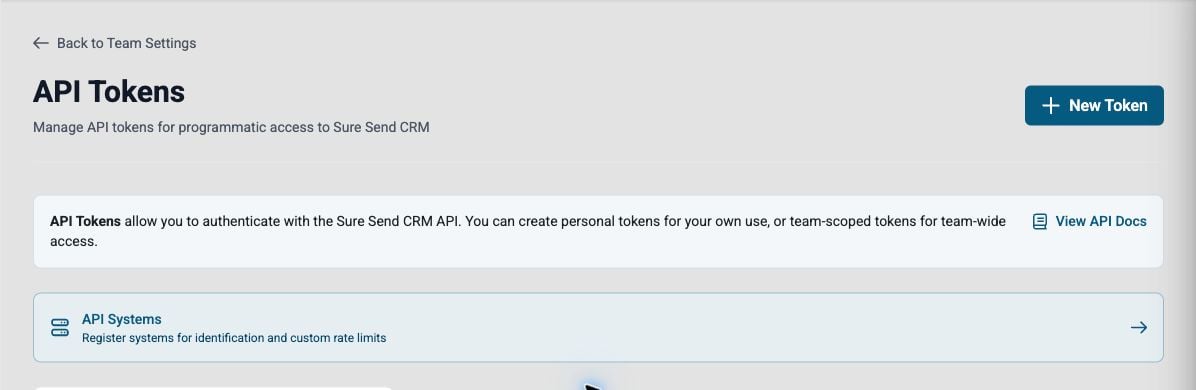 Select **New Token**. Enter a name that will help you recognize the connection later, such as **Rollout**.
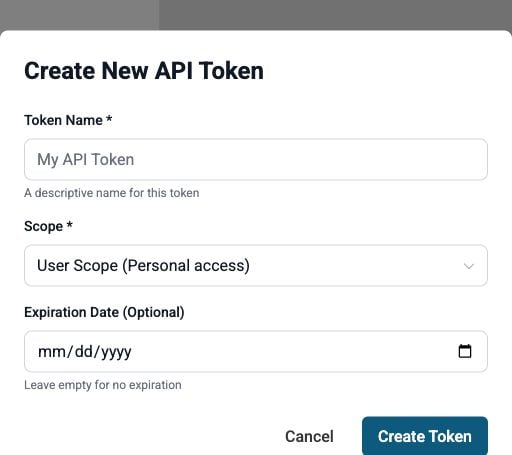 Open **Scope**, then choose the access this connection needs:
* **Team Scope** connects the team's CRM records.
* **User Scope** connects only the records available to your Sure Send user.
You can leave **Expiration Date** empty. Select **Create Token**, then copy the token immediately. Sure Send only shows it once, so leave this tab open while you finish the connection.
Treat the API token like a password. Do not send it by email or chat.
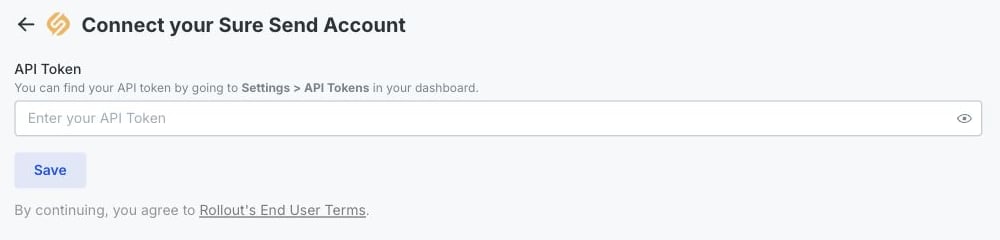
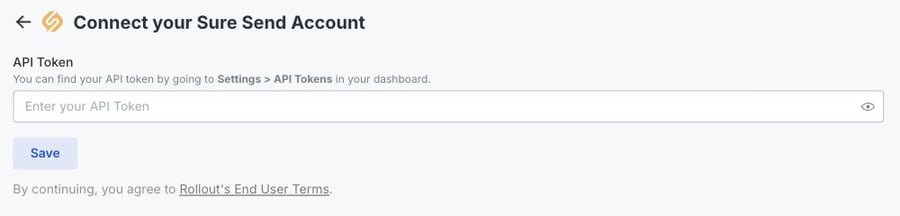
Return to the connection window. Paste the token into **API Token**, then select **Save**.
When the form saves, your Sure Send account is connected.
Open **Scope**, then choose the access this connection needs:
* **Team Scope** connects the team's CRM records.
* **User Scope** connects only the records available to your Sure Send user.
You can leave **Expiration Date** empty. Select **Create Token**, then copy the token immediately. Sure Send only shows it once, so leave this tab open while you finish the connection.
Treat the API token like a password. Do not send it by email or chat.
Return to the connection window. Paste the token into **API Token**, then select **Save**.
When the form saves, your Sure Send account is connected.