> ## Documentation Index
> Fetch the complete documentation index at: https://rollout.com/docs/llms.txt
> Use this file to discover all available pages before exploring further.
# Lofty
> Sign in to Lofty and authorize the secure connection.
Use this guide when the connection screen has a **Connect Account** button. If it asks for an API key instead, follow the [Lofty API Key guide](/docs/end-user-guides/crm/lofty).
Before you start, sign in to the Lofty account you want to connect in the same browser.
## Let's connect your account
In the product you are connecting, choose **Lofty**, then select **Connect Account**.
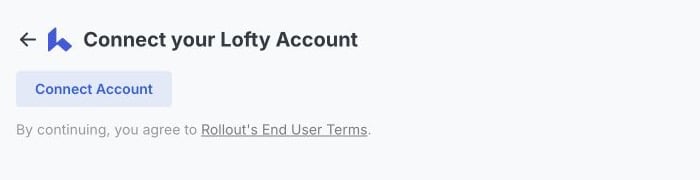 A Lofty authorization page opens in a new browser tab. Keep the original product tab open.
If Lofty asks you to sign in, use the account you want to connect. Confirm the page says **Rollout wants to access your Lofty account**.
A Lofty authorization page opens in a new browser tab. Keep the original product tab open.
If Lofty asks you to sign in, use the account you want to connect. Confirm the page says **Rollout wants to access your Lofty account**.
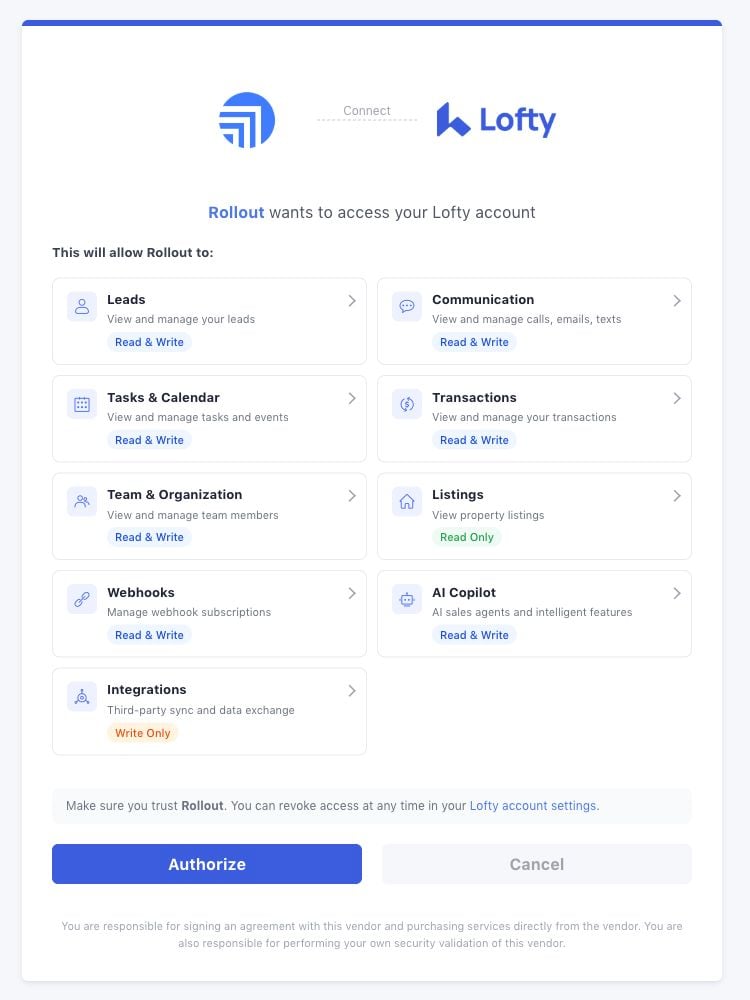 Review the requested access, then select **Authorize** at the bottom of the page.
If the wrong Lofty account appears, select **Cancel**. Sign out of Lofty, sign in to the correct account, and start the connection again.
Return to the original product tab. Your Lofty account name should appear, or the connection should show as connected.
You do not need to copy an authorization code, API key, or password.
## If the connection does not finish
Allow pop-ups for the product you are connecting, then select **Connect Account** again.
Return to the original product tab and wait a few seconds. If it still does not update, close the Lofty authorization tab and start the connection again.
Review the requested access, then select **Authorize** at the bottom of the page.
If the wrong Lofty account appears, select **Cancel**. Sign out of Lofty, sign in to the correct account, and start the connection again.
Return to the original product tab. Your Lofty account name should appear, or the connection should show as connected.
You do not need to copy an authorization code, API key, or password.
## If the connection does not finish
Allow pop-ups for the product you are connecting, then select **Connect Account** again.
Return to the original product tab and wait a few seconds. If it still does not update, close the Lofty authorization tab and start the connection again.