> ## Documentation Index
> Fetch the complete documentation index at: https://rollout.com/docs/llms.txt
> Use this file to discover all available pages before exploring further.
# Jungo
> Choose your Salesforce environment, then approve access to Jungo.
## Configure the Jungo OAuth application
Jungo runs on Salesforce and uses the same External Client App setup as the Salesforce connector. Before users connect, follow the [Salesforce OAuth application setup](/docs/end-user-guides/crm/salesforce#configure-the-salesforce-oauth-application), including its callback URL, scopes, Authorization Code and Credentials Flow, and PKCE settings.
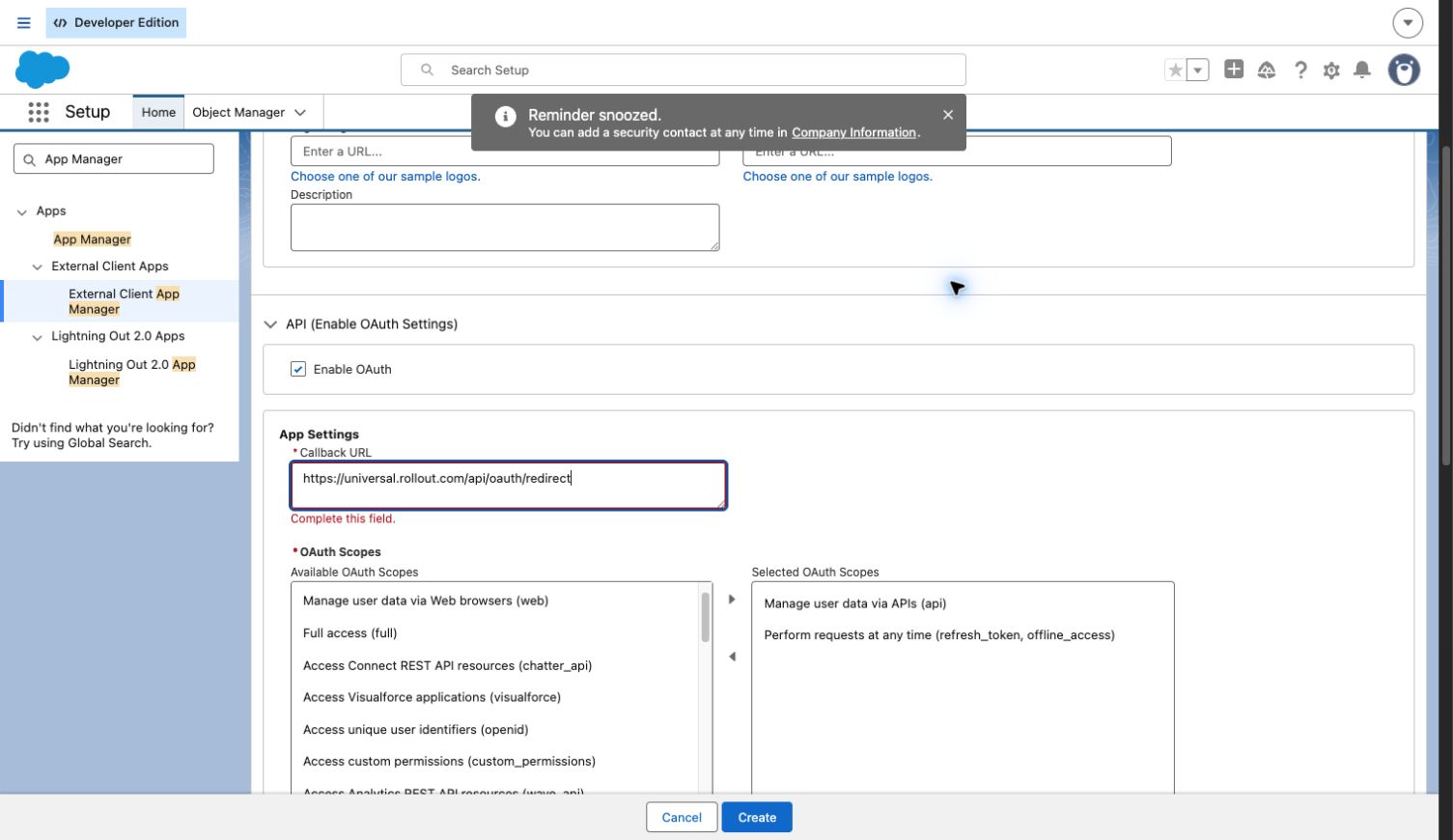 After Salesforce creates the app, copy its **Consumer Key** and **Consumer Secret**. Use them as `JUNGO_CLIENT_ID` and `JUNGO_CLIENT_SECRET` in the Rollout deployment configuration. Jungo and Salesforce use separate environment-variable names, even when their OAuth configuration is otherwise identical.
## Connect a Jungo account
End users do not need to create or copy an API key.
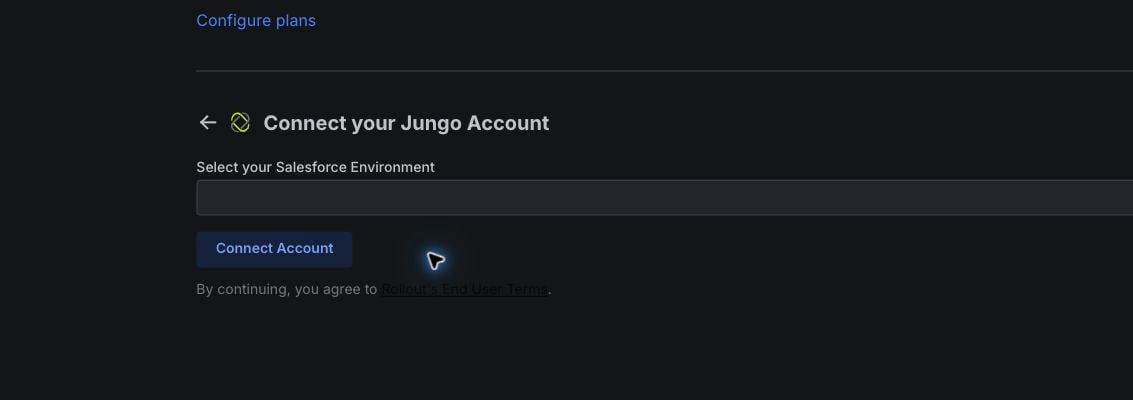
In the Jungo connection window, select **Prod** for your normal Jungo account or **Sandbox** for a Salesforce sandbox, then select **Connect Account**.
After Salesforce creates the app, copy its **Consumer Key** and **Consumer Secret**. Use them as `JUNGO_CLIENT_ID` and `JUNGO_CLIENT_SECRET` in the Rollout deployment configuration. Jungo and Salesforce use separate environment-variable names, even when their OAuth configuration is otherwise identical.
## Connect a Jungo account
End users do not need to create or copy an API key.
In the Jungo connection window, select **Prod** for your normal Jungo account or **Sandbox** for a Salesforce sandbox, then select **Connect Account**.
 Sign in with the Salesforce user that has access to the Jungo organization you want to connect. Complete Salesforce verification if prompted.
Review the requested permissions and select **Allow**. The secure window returns you to the product when the connection is complete.
If Salesforce reports that REST API access is unavailable, ask your Salesforce administrator to confirm that the user's edition, profile, and permission sets allow API access.
Sign in with the Salesforce user that has access to the Jungo organization you want to connect. Complete Salesforce verification if prompted.
Review the requested permissions and select **Allow**. The secure window returns you to the product when the connection is complete.
If Salesforce reports that REST API access is unavailable, ask your Salesforce administrator to confirm that the user's edition, profile, and permission sets allow API access.