> ## Documentation Index
> Fetch the complete documentation index at: https://rollout.com/docs/llms.txt
> Use this file to discover all available pages before exploring further.
# HubSpot
> Sign in to HubSpot, choose an account, and approve access.
## Before users connect: create the HubSpot app
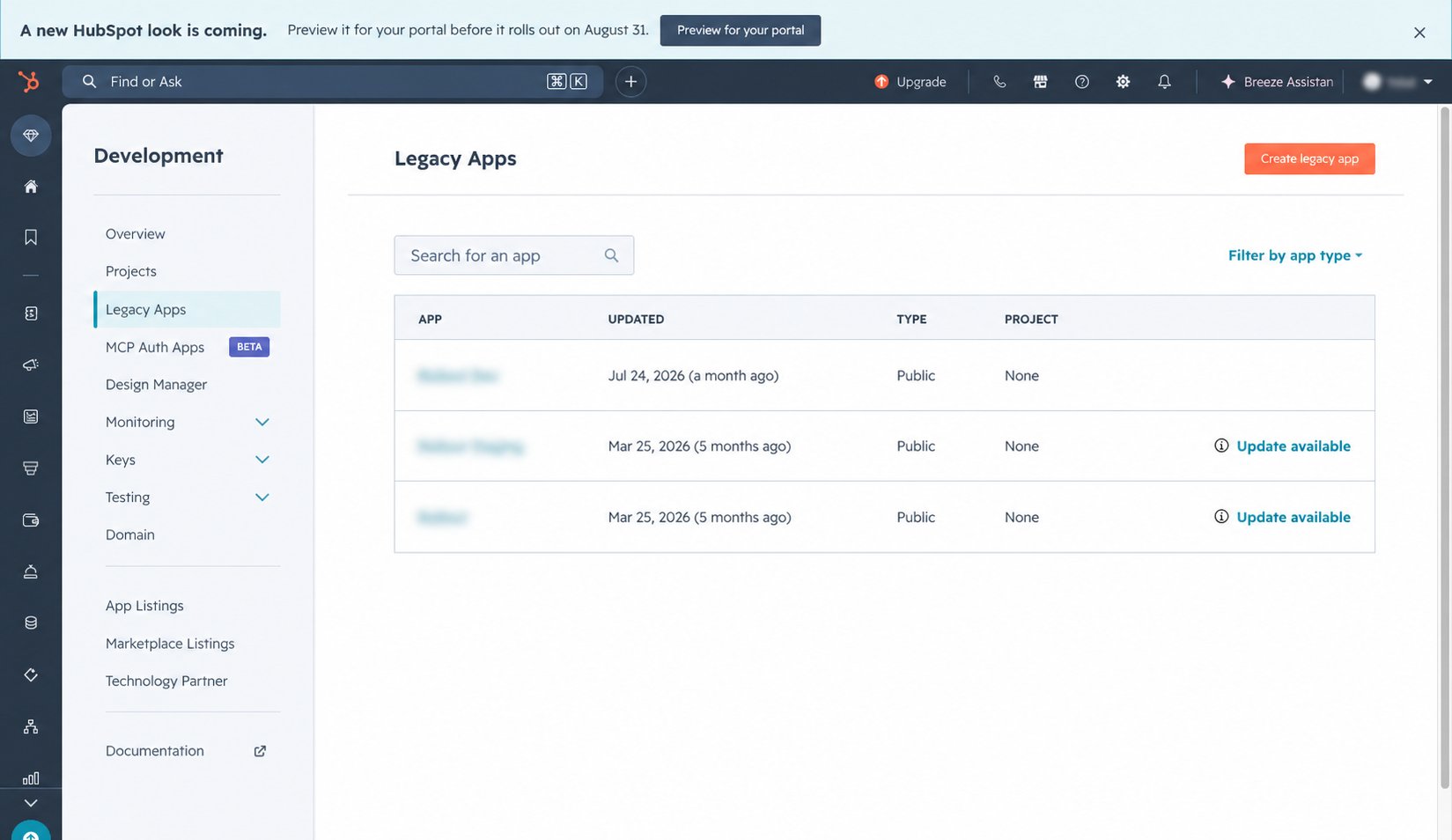
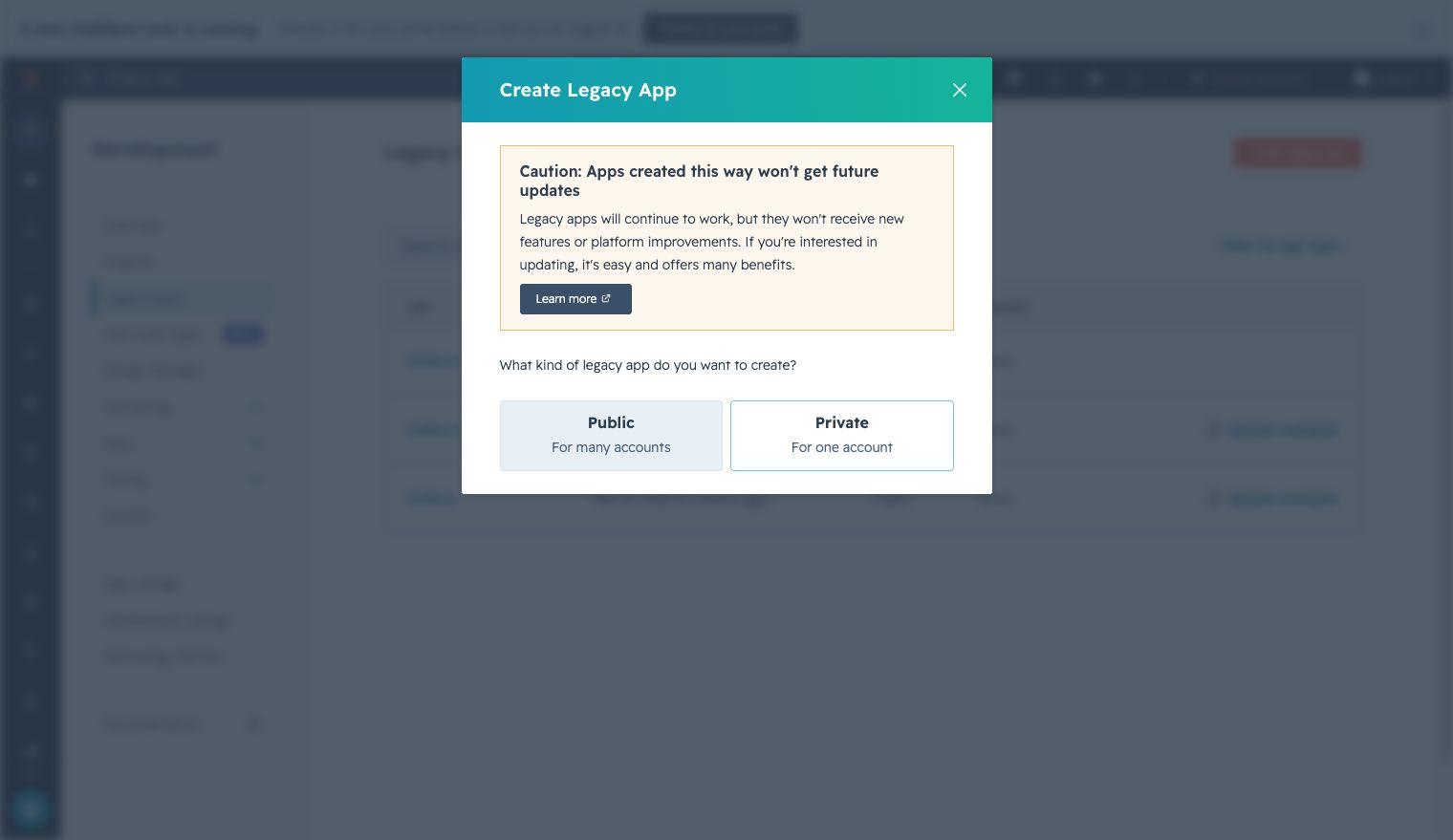
Open the [HubSpot Developer Portal](https://developers.hubspot.com/). Under **Development**, open **Legacy Apps**, select **Create app**, then choose **Public app**.
 Name the application after the product you are connecting and open the **Auth** tab.
HubSpot currently marks legacy apps as deprecated and may disable creation of new public legacy apps. If **Public** is unavailable, use an existing public app or follow HubSpot's current developer-project flow instead of creating a private app.
Add this production redirect URI:
```text theme={null}
https://universal.rollout.com/api/oauth/redirect
```
Add the scopes required by the integration:
```text theme={null}
crm.objects.contacts.read crm.objects.contacts.write
crm.objects.deals.read crm.objects.deals.write
crm.schemas.contacts.read crm.schemas.contacts.write
crm.schemas.deals.read crm.schemas.deals.write
crm.objects.owners.read crm.objects.companies.read
crm.lists.write crm.lists.read sales-email-read e-commerce tickets
```
Save the app, return to the **Auth** tab, and copy the **Client ID** and **Client Secret** into the HubSpot OAuth configuration in Rollout.
Depending on the portal permissions, a HubSpot Super Admin may need to complete this setup.
## Connect a HubSpot account
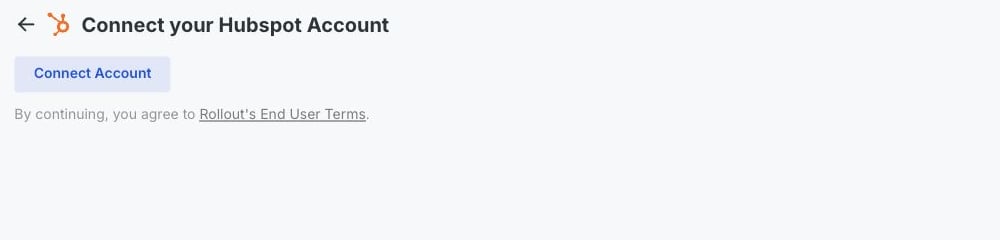
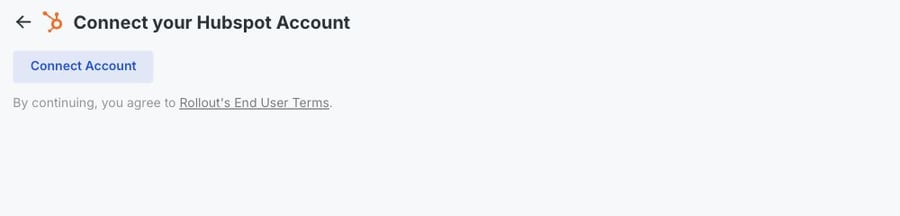
In the connection window, select **Connect Account**.
In the secure HubSpot window that opens, sign in with the HubSpot user who can approve integrations for the account.
Choose the HubSpot account you want to connect. Review the requested access, then approve the connection.
The window closes and returns you to the product. Your HubSpot account is now connected.
Name the application after the product you are connecting and open the **Auth** tab.
HubSpot currently marks legacy apps as deprecated and may disable creation of new public legacy apps. If **Public** is unavailable, use an existing public app or follow HubSpot's current developer-project flow instead of creating a private app.
Add this production redirect URI:
```text theme={null}
https://universal.rollout.com/api/oauth/redirect
```
Add the scopes required by the integration:
```text theme={null}
crm.objects.contacts.read crm.objects.contacts.write
crm.objects.deals.read crm.objects.deals.write
crm.schemas.contacts.read crm.schemas.contacts.write
crm.schemas.deals.read crm.schemas.deals.write
crm.objects.owners.read crm.objects.companies.read
crm.lists.write crm.lists.read sales-email-read e-commerce tickets
```
Save the app, return to the **Auth** tab, and copy the **Client ID** and **Client Secret** into the HubSpot OAuth configuration in Rollout.
Depending on the portal permissions, a HubSpot Super Admin may need to complete this setup.
## Connect a HubSpot account
In the connection window, select **Connect Account**.
In the secure HubSpot window that opens, sign in with the HubSpot user who can approve integrations for the account.
Choose the HubSpot account you want to connect. Review the requested access, then approve the connection.
The window closes and returns you to the product. Your HubSpot account is now connected.