> ## Documentation Index
> Fetch the complete documentation index at: https://rollout.com/docs/llms.txt
> Use this file to discover all available pages before exploring further.
# CINC
> Sign in to CINC and approve the secure connection.
Before you start, have your CINC site address, username, and password ready.
## Let's connect your account
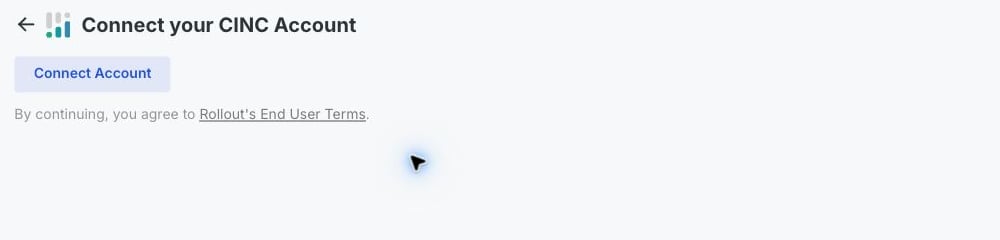
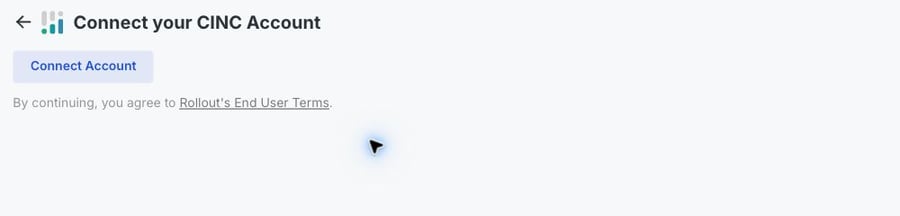
In the product you are connecting, choose **CINC**, then select **Connect Account**.
A secure CINC authorization page opens. Keep the original product tab open.
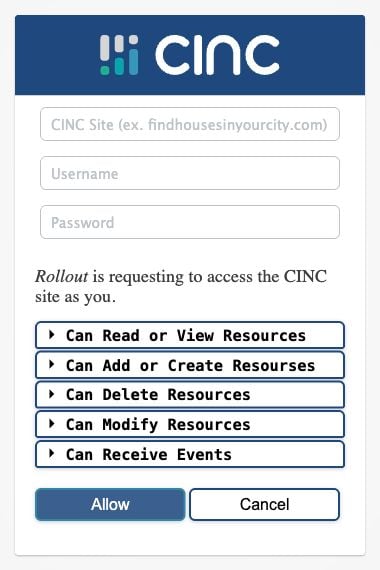
Enter your **CINC Site**, **Username**, and **Password**. Your CINC Site is the address your team uses to open CINC, such as `findhousesinyourcity.com`.
Confirm the page says **Rollout is requesting to access the CINC site as you**.
 If the wrong CINC site or account appears, select **Cancel** and start the connection again with the correct details.
Review the requested access, then select **Allow**.
Return to the original product tab. Your CINC account should appear, or the connection should show as connected.
You do not need to copy an authorization code, client ID, client secret, or API key.
## If the connection does not finish
Allow pop-ups for the product you are connecting, then select **Connect Account** again.
Enter only your CINC site address. Do not include `https://` or a page path.
Return to the original product tab and wait a few seconds. If it still does not update, close the CINC authorization page and start the connection again.
If the wrong CINC site or account appears, select **Cancel** and start the connection again with the correct details.
Review the requested access, then select **Allow**.
Return to the original product tab. Your CINC account should appear, or the connection should show as connected.
You do not need to copy an authorization code, client ID, client secret, or API key.
## If the connection does not finish
Allow pop-ups for the product you are connecting, then select **Connect Account** again.
Enter only your CINC site address. Do not include `https://` or a page path.
Return to the original product tab and wait a few seconds. If it still does not update, close the CINC authorization page and start the connection again.